
Yealink Wireless Office Setup: WF40 vs WF50 Wi-Fi
Posted by Global Teck Worldwide Staff on 29th Jan 2026
Yealink Wireless Office Setup: WF40 vs WF50 Wi-Fi
You finally cleaned up the desk.
No Ethernet spaghetti. No “who unplugged my phone?” drama. No crawling under furniture like you’re training for a weird office Olympics event.
Then the first call starts… and your audio turns into a stuttering robot.
You can hear them. They can’t hear you. Or they can hear you… in pieces. And now you’re doing the classic professional move: pretending it’s “just a bad connection” while quietly wondering if going wireless was a mistake.
Here’s the deal: Wi-Fi isn’t magic. It’s a system. And voice calls are sensitive to weak signal, congestion, and tiny dropouts that your laptop can shrug off. Translation: your desk phone needs stability, not “fast internet.”
This guide shows you how to set up a Yealink wireless office the reliable way—using the right Wi-Fi band and the right dongle (WF40 or WF50) so your calls stay clear and your setup stays clean.
(And yes: “the dongle fits” is not the same thing as “it’ll work.” Ask anyone who’s ever processed returns.)
Who This Is For
If you’re using Yealink desk phones and want fewer cables without sacrificing call quality, this is for you—especially if you support remote workers, hot desks, or small offices that want things to “just work.”
You’ll get the most value if you:
- Run hot desks or temporary setups (and don’t want to install Ethernet everywhere)
- Manage a small business office and want faster installs with less mess
- Support a call center where “choppy” is a four-letter word
- Work hybrid/remote where the router isn’t sitting six inches from the phone
- Use VoIP platforms like RingCentral, Teams, Dialpad, 8x8, Zoom Phone and want a dependable wireless connection

Choose the Right Wi-Fi Band for Your Desk
Most Wi-Fi advice is written for streaming movies, not running calls. Your desk phone doesn’t care about “top speed.” It cares about staying steady where it sits.
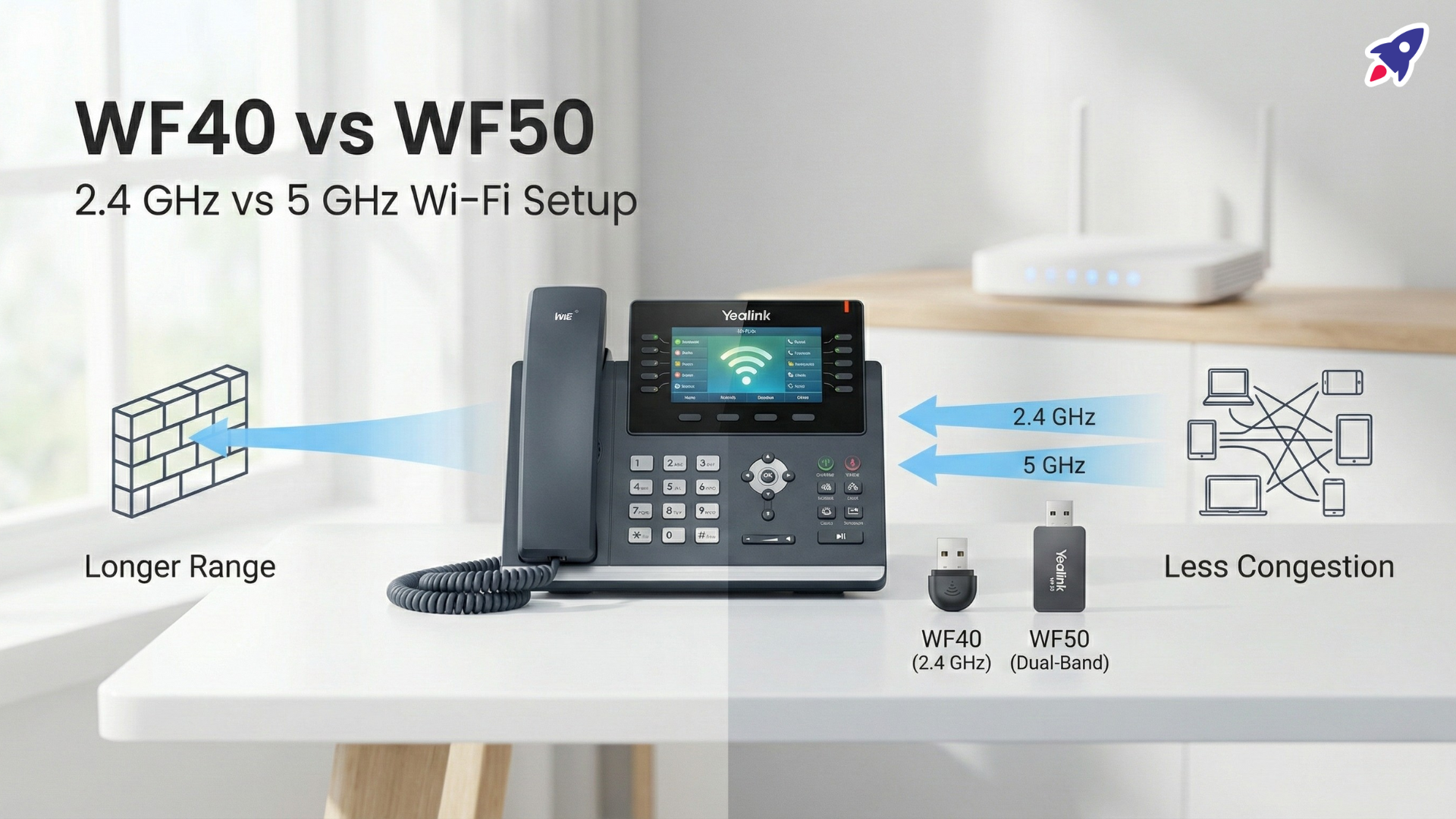
- 2.4 GHz Wi-Fi: Longer range + better through walls → helps when your router is farther away.
- 5 GHz Wi-Fi: Often cleaner/less congested → helps in busy offices and apartments with a lot of competing networks.
- The real rule: Use the band that stays stable where the phone lives, not the one that “should be better.”
- Wall Penetration: 2.4 GHz holds on better through obstacles → fewer surprise dropouts mid-sentence.
- Crowded-Air Survival: 5 GHz can reduce congestion → fewer “can you repeat that?” moments in busy buildings.
- Voice Sensitivity: Calls hate jitter and packet loss → browsing can “feel fine” while calls fall apart.
Pick Your Dongle: WF40 vs WF50
Yealink makes going wireless simple… when you choose the right dongle for your environment and your phone’s firmware support.
WF40 (2.4 GHz only)
- 2.4 GHz-only Wi-Fi: Connects on the long-range band → better odds when coverage is uncertain.
- Range-friendly choice: Helps when you need wall penetration → fewer “it worked yesterday” mysteries.
- Best for: Home offices, small offices, longer router distance, questionable 5 GHz coverage.
WF50 (dual-band 2.4 + 5 GHz)
- Dual-band flexibility: Lets you use 2.4 or 5 GHz → gives you options when the office airwaves are crowded.
- Crowded-office advantage: 5 GHz can be cleaner → less interference when 2.4 GHz is overloaded.
- Important nuance: WF50 commonly shows up in a newer revision (often called WF50 V1) and compatibility/firmware requirements can differ from older info.

The 3-Step Setup That Prevents Returns
If you do these three steps, you avoid the most common “why won’t it work?” headaches.
Step 1: Identify your Yealink phone model → flip it over or check the menu. Don’t guess.
Step 2: Check Wi-Fi where the phone will sit → 2.4 only or both? router close enough for solid 5 GHz? crowded building?
Step 3: Choose for reliability (not hype)
- Need distance through walls → 2.4 GHz is often more forgiving (WF40)
- Need a cleaner band in a busy office → dual-band can help (WF50)
- Using WF50 (especially V1) → verify compatibility and keep firmware current
Proof & Specifics
Here’s what “unstable Wi-Fi” looks like on a desk phone:
- Dropped calls
- Choppy audio
- One-way audio
- Intermittent registration issues
And here’s what it usually means in normal human language:
- Weak signal where the phone sits: Move the phone/router closer or improve coverage first.
- Congestion on 2.4 GHz: Consider switching to 5 GHz if you have strong 5 GHz coverage, or use WF50 where supported.
- “My laptop is fine”: Browsing tolerates hiccups; real-time voice doesn’t.
- Bluetooth overlap: Bluetooth can interfere on 2.4 GHz in crowded environments; moving more devices to 5 GHz can reduce overlap.
Provider note (because this always comes up):
- Your VoIP provider name matters less than you think. Dongle support is mainly a Yealink phone model + firmware question, while providers influence provisioning and firmware policies.
FAQ
Is 5G the same as 5 GHz Wi-Fi?
No. 5G is cellular service from towers; 5 GHz is a Wi-Fi band from your router.
Which is better for VoIP calls: 2.4 GHz or 5 GHz?
Whichever is most stable where the phone sits. 5 GHz often helps in crowded environments; 2.4 GHz can be more reliable at longer distances.
Why do I only see one Wi-Fi name?
Many routers use band steering and combine bands under one SSID; the router decides which band your device uses.
Should you split Wi-Fi into two names (2.4 and 5)?
If you want predictable behavior for a specific device, splitting can help. If everything works, it’s optional.
Will WF40/WF50 work with RingCentral, Zoom Phone, Dialpad, or 8x8?
Typically yes if your Yealink model is supported/provisioned and your phone firmware supports the dongle and is up to date.
Why does my provider say the phone is supported, but the Wi-Fi dongle won’t work?
Providers certify/provision phone models; dongle support depends on phone firmware features and dongle revision compatibility.

Why It Matters
When your desk phones stay stable, you waste less time repeating yourself, your team sounds sharper on every call, and you stop losing momentum to “can you hear me now?” moments. That’s real professionalism—without adding more cables to your life.
Shop the Gear / What to Do Next
If you want a Yealink wireless setup that behaves, your next step is simple: choose the dongle that matches your environment and your phone support.
- Yealink WF40 (2.4 GHz Wi-Fi Dongle): Best when you need range and wall penetration for steady calls at a distance.
- Yealink WF50 (Dual-Band 2.4 + 5 GHz): Best when 2.4 GHz is congested and you want the option of a cleaner 5 GHz band—verify compatibility, especially WF50 V1 scenarios.
Click the product cards/buttons to grab WF40 or WF50 and get your Yealink phones online without the call-quality roulette.
Help / Service
Choosing the right dongle can get weird fast—phone model families, firmware, and office Wi-Fi conditions don’t always play nice. If you want a quick “tell me what to buy” answer, reach out to Global Teck Worldwide and you’ll get help picking the right setup the first time.
Video Overview
If the embedded video doesn’t load, watch it here.
Need help picking the right headset or speakerphone?
Contact Global Teck Worldwide