
Yealink WF50 V1 Compatibility: Which Phones Work (2026 Guide)
Posted by Quentin Vernon on 22nd May 2026
Yealink WF50 V1 Compatibility: Which Phones Work and Which Don't
Quick answer: The Yealink WF50 V1 is compatible with the Yealink SIP-T42U, T43U, T46U and T48U (firmware 108.86.0.70 or later), the SIP-T53 (firmware 96.86.0.70 or later), and the Teams MP54. It is not compatible with the T46S, T48S, T41S, T42S, T52S, T54S, or any G-series or T3-series phone. If you need Wi-Fi on an older S-series or G-series phone, look at the WF40 instead.
Confusingly, "V1" is the newer hardware revision, not the original. Yealink's first dongle was called simply WF50. The replacement is WF50 (V1). That backwards naming is the single most common reason people end up with a dongle their phone won't recognize.
Why does my Yealink phone say "Unrecognized USB adapter"?
If you plug in a WF50 and the phone displays Unrecognized USB adapter, the dongle is usually not defective. You most likely have the WF50 (V1) hardware in a phone that only supports the original WF50.
Yealink's own support documentation attributes the hardware change to global supply chain conditions, and confirms that WF50 (V1) supports a narrower list of phones than the original adapter did. If your phone or firmware isn't on that list, this error is exactly what you'll see.
The fix is not resetting your router. The fix is confirming which dongle revision you have and whether your phone supports it.
What does the Yealink WF50 V1 do?
The WF50 V1 is a USB Wi-Fi adapter that lets a supported Yealink desk phone join a wireless network instead of requiring an Ethernet cable.
Specifications:
- 2.4 GHz Wi-Fi up to 150 Mbps
- 5 GHz Wi-Fi up to 433 Mbps
- IEEE 802.11a/b/g/n/ac
- WPA/WPA2 security
- Plug-in USB installation on supported Yealink phones
What the WF50 V1 does not do:
- It does not add Bluetooth to any phone
- It does not connect Bluetooth or wireless headsets
- It does not give Wi-Fi to a laptop, desktop, tablet, or game console
- It does not work with every Yealink phone that has a USB port
That last point causes the most confusion. A USB port is only a physical connection. The phone also needs the correct driver, and that driver ships inside the phone's firmware. No driver, no dongle, regardless of whether it physically fits.
Yealink WF50 V1 compatible phones
| Phone model | WF50 V1 | Minimum firmware |
|---|---|---|
| SIP-T42U | Compatible | 108.86.0.70 or later |
| SIP-T43U | Compatible | 108.86.0.70 or later |
| SIP-T46U | Compatible | 108.86.0.70 or later |
| SIP-T48U | Compatible | 108.86.0.70 or later |
| SIP-T53 | Compatible | 96.86.0.70 or later |
| Teams MP54 | Compatible | Confirm current Teams firmware |
| SIP-T73U | In Yealink's wider matrix | Latest approved firmware |
| SIP-T74U | In Yealink's wider matrix | Latest approved firmware |
| SIP-T77U | In Yealink's wider matrix | Latest approved firmware |
| VP59 | In Yealink's wider matrix | Latest approved firmware |
| Teams MP52 / MP52 E2 | Requires a WF50; confirm revision | Confirm current Teams firmware |
A note on the last five rows. Yealink's support article on the Unrecognized USB adapter error names only the T42U, T43U, T46U, T48U, T53 and MP54. Yealink's broader Wi-Fi USB Dongle Compatibility matrix additionally lists the T73U, T74U, T77U, VP59 and MP52. These are almost certainly newer models added after the support note was written, but if you're buying for one of them, confirm with the seller or with Yealink before ordering rather than assuming.
What firmware does the WF50 V1 require?
- SIP-T42U, T43U, T46U, T48U: 108.86.0.70 or later
- SIP-T53: 96.86.0.70 or later
- T7xU series: use the latest firmware approved by your provider
You may encounter 106.86.0.70 quoted for the T4xU phones in some places. Yealink's support documentation states 108.86.0.70. When in doubt, install the latest approved release. Targeting the exact minimum saves you nothing and can leave you troubleshooting a version boundary.
Important for hosted phone customers: do not download generic Yealink firmware and flash it yourself. Many providers push their own builds, and loading a stock image can wipe provisioning settings, break customizations, or be blocked outright. Ask your provider or IT administrator first.
How to check your Yealink firmware version
- Press Menu on the phone
- Select Status
- Select More or Phone
- Find Firmware Version
Menu wording varies slightly by model and firmware release. You can also check via the phone's web administration page.

Phones NOT compatible with the WF50 V1
S-series phones: the most common mistake
The original WF50 worked with these. The WF50 V1 does not:
- SIP-T41S
- SIP-T42S
- SIP-T46S
- SIP-T48S
- SIP-T52S
- SIP-T54S
This is where most bad purchases happen. A buyer finds a page saying "WF50 compatible with T46S," orders a WF50, receives the currently shipping V1, and it does nothing. Both the old page and the new product are technically accurate. They describe different hardware.
If you have a T46S or T48S and need Wi-Fi: you need either the original WF50, now scarce, or the WF40. A WF50 V1 will not work no matter what firmware you install.
G-series phones
Not compatible with WF50 V1: T27G, T29G, T32G, T38G, T40G, T42G, T46G, T48G, T49G.
Several of these worked with the WF40 or the original WF50, which recreates the same outdated-listing problem.
T3-series phones
Not compatible: T30, T30P, T31, T31P, T31G, T33P, T33G. These do not become compatible through a firmware update.
Phones that already have built-in Wi-Fi
You do not need any dongle for these:
- T53W, T54W, T57W
- T58W and all T58W variants
- T73W, T74W
- T85W, T87W, T88W, T88V and Pro variants
- MP56 and MP56 E2
The W suffix generally indicates built-in wireless. Buying a dongle for one of these wastes money and occupies a USB port you may want for something else.
Watch these pairs carefully:
- T53 uses the WF50 V1. T53W has Wi-Fi built in.
- T73U uses the WF50 V1. T73W has Wi-Fi built in.
The MP56 deserves a specific mention because it appears on plenty of retail listings as "WF50 compatible." Compatible isn't the same as necessary. The MP56 already has Wi-Fi hardware inside.
Older and conference models
Also not compatible with WF50 V1: T19P, T20P, T21P, T22P, T23P, T26P, T27P, T28P, T40P, T41P, T56A, T58A, T58V, CP960, CP925, CP965, CP935W, CP935W-Base.
Some older Yealink Teams and Skype for Business documentation mentioned WF50 support on the T56A. That referred to the original adapter, not the V1.
WF50 vs WF50 V1: what's the difference?
| Original WF50 | WF50 V1 | |
|---|---|---|
| Release | Earlier hardware | Later replacement hardware |
| S-series (T46S, T48S) | Supported | Not supported |
| G-series (T27G, T46G) | Some models supported | Not supported |
| U-series (T46U, T48U) | Supported | Supported |
| T53 | Supported | Supported |
| Availability | Discontinued / scarce | Currently shipping |
Think of them as two different network cards sold under nearly the same name. Same purpose, different internal hardware, different driver requirement. The driver lives in the phone firmware, and older phone families stopped receiving updates that would add V1 support. Compatibility does not carry over.
That's why a listing can honestly say "WF50 works with T46S" while a newly shipped WF50 V1 fails completely on that same T46S.
How to tell if you have a WF50 or a WF50 V1
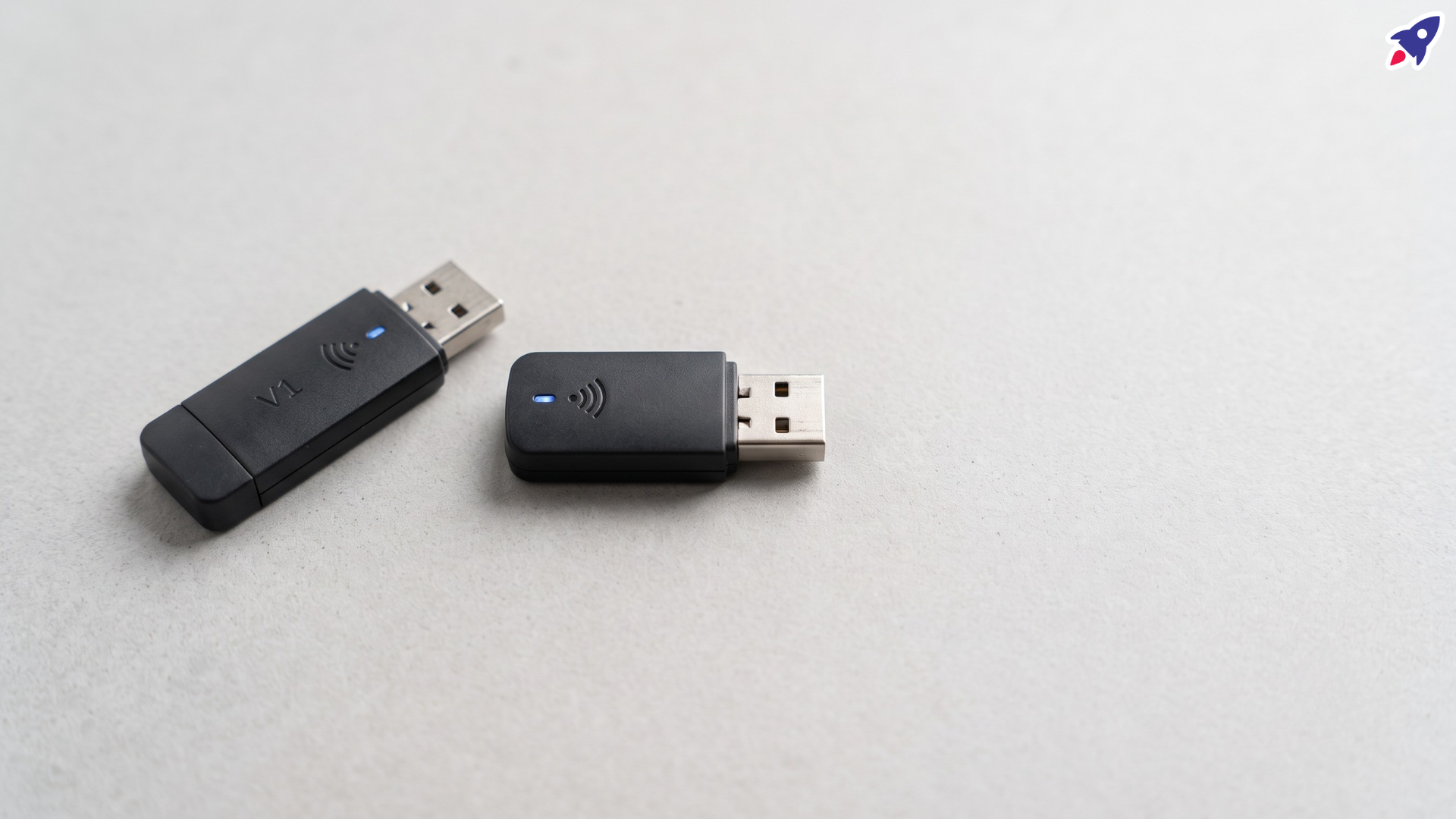
The V1 hardware is physically marked. Look for a "V1" designation in three places:
- On the rear panel of the dongle itself
- On the kraft paper box sticker
- On the outer box sticker
If the adapter is in your hand, you can settle this in five seconds. If you're buying online, you can't, which is why the checklist below matters.
How to buy the right WF50 version
Step 1: Get your exact phone model number
Not "T46." Not "T4 series." The complete model string including every suffix: U, S, G, W, P, E2, Pro.
Find it on the label underneath the phone, in Menu → Status, on the web admin page, or on your original invoice.
T46U, T46S and T46G are three different products with three different answers.
Step 2: Check whether Wi-Fi is already built in
A W suffix usually means yes. The MP56 also has built-in Wi-Fi despite having no W. Skip the purchase entirely.
Step 3: Match your exact model against the V1 column
Use a compatibility source that distinguishes WF50 (V1) specifically, not one that just says "WF50 compatible."
Step 4: Update firmware before the dongle arrives
Not after it appears not to work.
Step 5: Confirm the listing specifies WF50 (V1)
A title reading only "Yealink WF50 Dual-Band Wi-Fi Dongle" tells you nothing. Neither does a stock photo, a compatibility list copied from 2019, or reviews left by someone with a different phone model.
Step 6: Ask the seller a model-specific question
Is the exact unit shipping marked "WF50 (V1)," and is that hardware revision supported on a Yealink [full model number] running firmware [full version number]?
If the reply is "WF50 works with Yealink phones," they haven't answered. Keep the response in writing in case you need to return it.
If you're buying for an S-series or older G-series phone, the logic reverses. You need the original WF50, not V1. That stock is scarce, often used or old, and sometimes mislabelled, so written confirmation matters even more.
Quick decision table
| Your phone | What to do |
|---|---|
| T42U, T43U, T46U, T48U | Buy WF50 V1; update to 108.86.0.70 or later first |
| T53 | Buy WF50 V1; firmware 96.86.0.70 or later |
| T73U, T74U, T77U, VP59 | Likely WF50 V1; confirm before ordering |
| MP52, MP52 E2, MP54 | WF50 required; confirm V1 support against Teams firmware |
| T41S, T42S, T46S, T48S, T52S, T54S | Do not buy WF50 V1. Use the original WF50 or the WF40 |
| T27G, T29G, T46G, T48G | Do not buy WF50 V1. Consider the WF40 |
| T53W, T54W, T57W, T73W, T74W | Wi-Fi is built in; no dongle needed |
| MP56, MP56 E2 | Wi-Fi is built in; no dongle needed |
| Any T3-series phone | Not supported; no dongle option |
| CP960, CP925, CP965, CP935W | Not supported |
Installing the WF50 V1
- Update the phone to the approved firmware version
- Reboot the phone after updating
- Insert the WF50 V1 into the phone's USB port
- Wait for the phone to confirm a Wi-Fi adapter was added
- Open the phone's Wi-Fi settings and enable Wi-Fi
- Select your 2.4 GHz or 5 GHz network
- Enter the network credentials
- Confirm the phone receives an IP address
- Place a test call and check stability
WF50 V1 troubleshooting
Nothing happens when the adapter is inserted
Work through these in order. The first cause is by far the most common:
- Wrong WF50 hardware revision for your phone
- Phone model not supported at all
- Firmware below the required version
- USB port disabled or already assigned to another accessory
- Adapter not fully seated
- Provider firmware missing the required driver
- Defective adapter
Do not start by resetting your wireless network. If the phone isn't recognizing the USB hardware, router settings are irrelevant.
The adapter is recognized but no networks appear
Check that Wi-Fi is enabled in the phone menu, the router is broadcasting its SSID, the phone is in range, and the security configuration is supported. Test 2.4 GHz as well as 5 GHz, since some 5 GHz channels aren't available to the phone in every regulatory region.
The phone sees the network but won't connect
Check password accuracy, WPA/WPA2 or enterprise authentication settings, MAC address filtering, 802.1X credentials or certificates, DHCP availability, and VLAN policies.
Note that a business desk phone generally cannot complete a hotel-style captive portal login the way a laptop browser can.
It connects but call quality is poor
Signal strength isn't the whole picture. Packet loss, jitter, congestion, roaming between access points, power-saving behavior, weak 5 GHz coverage and poor QoS configuration all degrade voice before they degrade anything else.
For a fixed desk phone, Ethernet remains more predictable than Wi-Fi. The WF50 V1 earns its place where running a cable isn't practical.
Frequently asked questions
Is the WF50 V1 newer than the WF50?
Yes. Despite the naming, WF50 (V1) is the later hardware revision. The original product was called simply WF50.
Does the WF50 V1 work with the T46S?
No. The T46S is only compatible with the original WF50. The V1 hardware will produce an Unrecognized USB adapter error.
Does the WF50 add Bluetooth?
No. The WF50 and WF50 V1 are Wi-Fi network adapters only. They do not add Bluetooth or connect wireless headsets.
Can I use the WF50 V1 on a laptop or PC?
No. It only works with supported Yealink desk phones. It will not function as a general USB Wi-Fi adapter for computers.
Will a firmware update make my unsupported phone compatible?
Not if the model isn't on Yealink's list. Firmware minimums apply only to phones Yealink already supports. Unsupported models such as the T46S or T48G will not gain V1 support from any update.
What should I buy for an older Yealink phone?
For S-series and G-series phones, the WF40 is generally the available option. Yealink's own support guidance points users with unsupported phones toward the WF40.
Do I need a WF50 for my T53W?
No. The W suffix indicates built-in wireless. Only the non-W T53 needs a dongle.
The short version
- WF50 V1 works with: T42U, T43U, T46U, T48U (108.86.0.70+), T53 (96.86.0.70+), MP54
- WF50 V1 does not work with: any S-series, G-series or T3-series phone
- Already have Wi-Fi: W-series models and the MP56
- Older phones: look at the WF40
- Before ordering: confirm the listing specifies WF50 (V1), and get your exact model number including suffix
Two dongles, one name, and a version number that means the opposite of what it looks like. Check the suffix, check the firmware, check the box sticker.
Need help picking the right headset or speakerphone?
Contact Global Teck Worldwide