

Windows 11 Bluetooth Audio Drops? Fix Sony XM4 & More!
Posted by Global Teck Worldwide Staff on 20th Mar 2026
Windows 11 Bluetooth Audio Drops? Fix Sony XM4 & More!
Windows 11 Bluetooth Audio Drops? Fix Sony WH-1000XM4 & Beyond!
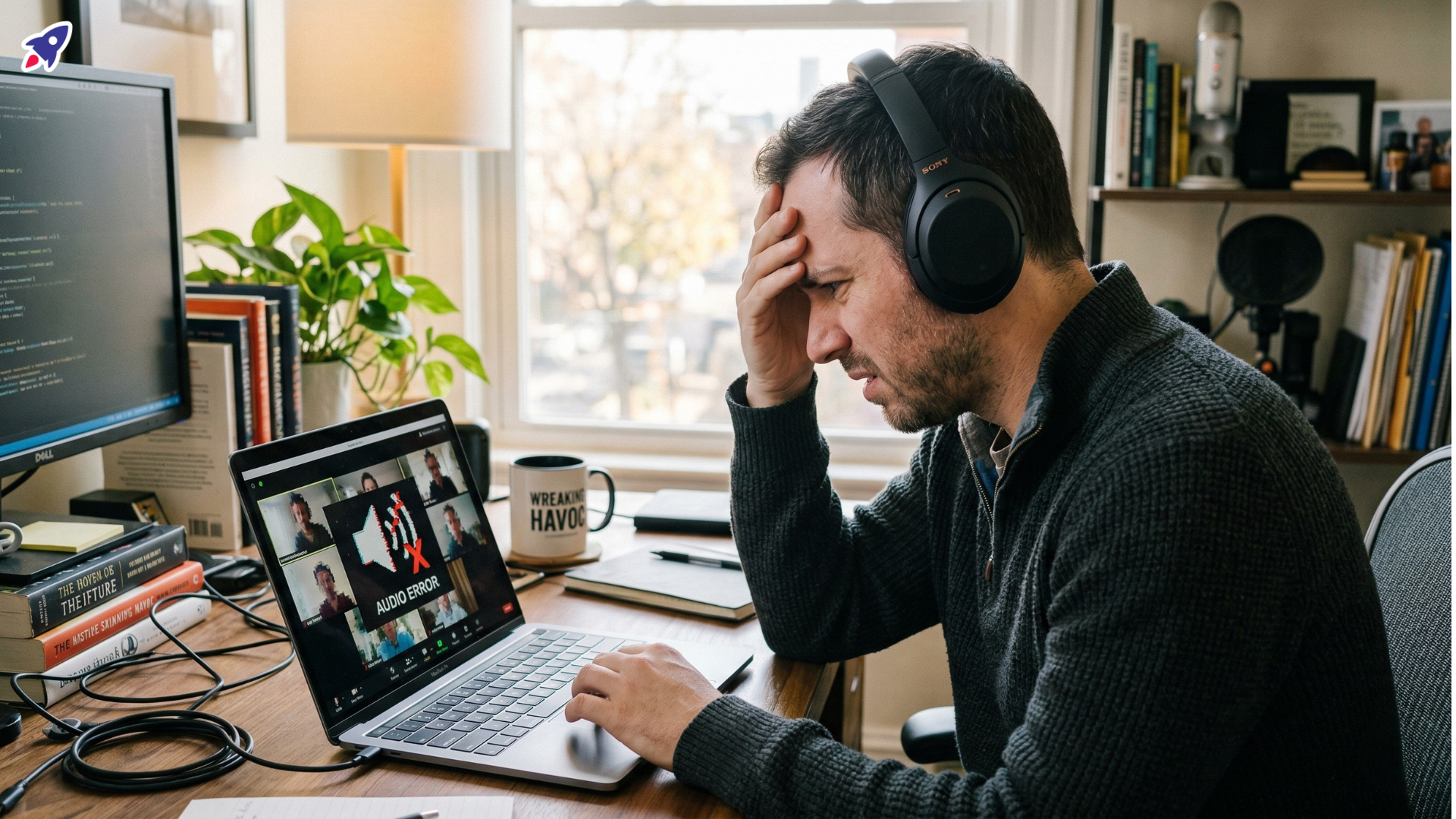
Here’s the situation: You’re dialed into that crucial Microsoft Teams meeting. You’ve got your sleek, expensive Sony WH-1000XM4 headphones (or a similar premium pair) perched just so, ready to engage. Someone asks a vital question, you confidently unmute to respond, and then… silence. Or worse, a digital garble that sounds like a robot gargling gravel. Your audio, once crystal-clear for music, has just ghosted you.
What gives? It feels like your fancy headphones, designed for sublime sound, throw a tantrum the moment you open Teams or Zoom on Windows 11. It's not just annoying; it's downright embarrassing. You're left repeating yourself, missing key information, and feeling utterly unprofessional. You bought these for quality, not to play a game of digital charades, right?
You’re not alone, and it’s not your fault (mostly). This infuriating little dance between your Windows 11 PC, your Bluetooth headset, and your communication software is a common headache. The good news? There’s a way out of this tech tangle. We’re going to dive into the "why" your premium headphones behave like a moody teenager on calls and, more importantly, the "how to fix it" so you can get back to sounding like the pro you are, without the tech drama.
Who This Is For
If you've ever found yourself nodding along (or violently shaking your head in agreement) with the scenario above, then consider this guide your new best friend. It’s tailor-made for anyone who:
- Uses premium consumer Bluetooth headphones (like Sony WH-1000XM4s, Bose QC, etc.) for work calls on Windows 11.
- Experiences frustrating audio dropping, cutting out, or robotic sound quality when joining Microsoft Teams or Zoom meetings.
- Wants to eliminate tech headaches and achieve crystal-clear sound, consistently.
- Needs reliable, professional-grade audio for remote work, hybrid meetings, customer support, or critical business communications.
- Is tired of endless troubleshooting and just wants their gear to simply *work* as advertised.
The Secret Life of Bluetooth: Why Your Audio Goes Awry
Let’s pull back the curtain on why your fantastic headphones suddenly turn into a potato on calls. It's not a bug; it's a "feature" – or rather, a fundamental difference in how Bluetooth handles different types of audio. Your headphones are leading a double life, and Windows 11 sometimes struggles to manage it.
- Two Modes, One Headset: Your Bluetooth headphones aren't just one thing. They have different "profiles." There's the high-fidelity A2DP profile for awesome music playback (think rich stereo sound), and then there's the HFP/HSP (Hands-Free Profile/Headset Profile) for calls. The HFP/HSP prioritizes microphone input and two-way communication over audio quality.
- The Great Profile Switch: The moment you open Teams or Zoom and join a call, Windows 11 often automatically switches your headset from the glorious A2DP music profile to the lower-fidelity HFP/HSP mode. This is so your microphone can work, but it sacrifices the rich audio you’re used to, often causing those dreaded drops, choppiness, or robotic voices. Your stereo audio essentially goes on vacation.
- Consumer vs. Professional Design: Consumer headphones like your Sony XM4s are optimized for immersive music. Professional-grade headsets, especially those certified for platforms like Teams or Zoom, are engineered from the ground up to seamlessly manage these profile switches *without* sacrificing audio quality or dropping out. They speak the same sophisticated language as your professional communication software.
Quick Fixes for Your Current Setup (The Band-Aid Brigade)
Before we dive into the ultimate solution, let’s try some troubleshooting to make your current setup a bit less painful. Think of these as emergency bandages, not a full cure.
- Update Your Bluetooth Drivers: Sometimes, an outdated or corrupted driver is the sneaky culprit behind your audio woes.
- Driver Deep Dive: Search for "Device Manager" in your Windows Start Menu. Expand the "Bluetooth" section, find your specific adapter (it might be Realtek, Intel, or something else), right-click it, and select "Update driver." Sometimes, visiting your PC manufacturer’s website directly for the latest driver is even more effective.
- Fresh Start: A quick driver update can work wonders, resolving a surprising number of connection hiccups and improving overall stability.
- Disable "Hands-Free Telephony" (Use with Caution!): This is a classic workaround, but it comes with a trade-off.
- The Toggle Tactic: Search for "Devices and Printers" in your Windows Start Menu. Find your Sony WH-1000XM4 (or similar headset) icon, right-click it, go to "Properties," then navigate to the "Services" tab. Uncheck the box next to "Hands-Free Telephony."
- Hear Everything, Say Nothing: While this often resolves the low-quality audio issue and drops during calls, it typically disables your headset's microphone for calls. You’ll need to use your laptop’s built-in mic or a separate external microphone if you choose this route. Great for listening, not so much for two-way conversations.
Level Up Your Connection: When Your PC Needs a Boost
Sometimes, the problem isn't just your headphones; it's your computer's built-in Bluetooth adapter dragging you down. Integrated adapters, especially in older machines, can be the weakest link in your audio chain.
- The Integrated Blues: Older or cheaper integrated Bluetooth adapters often suffer from limited range, weaker signals, and struggles when managing multiple devices or high data transfer. This can lead to persistent dropped connections, stuttering audio, and overall unreliability, even with excellent headphones.
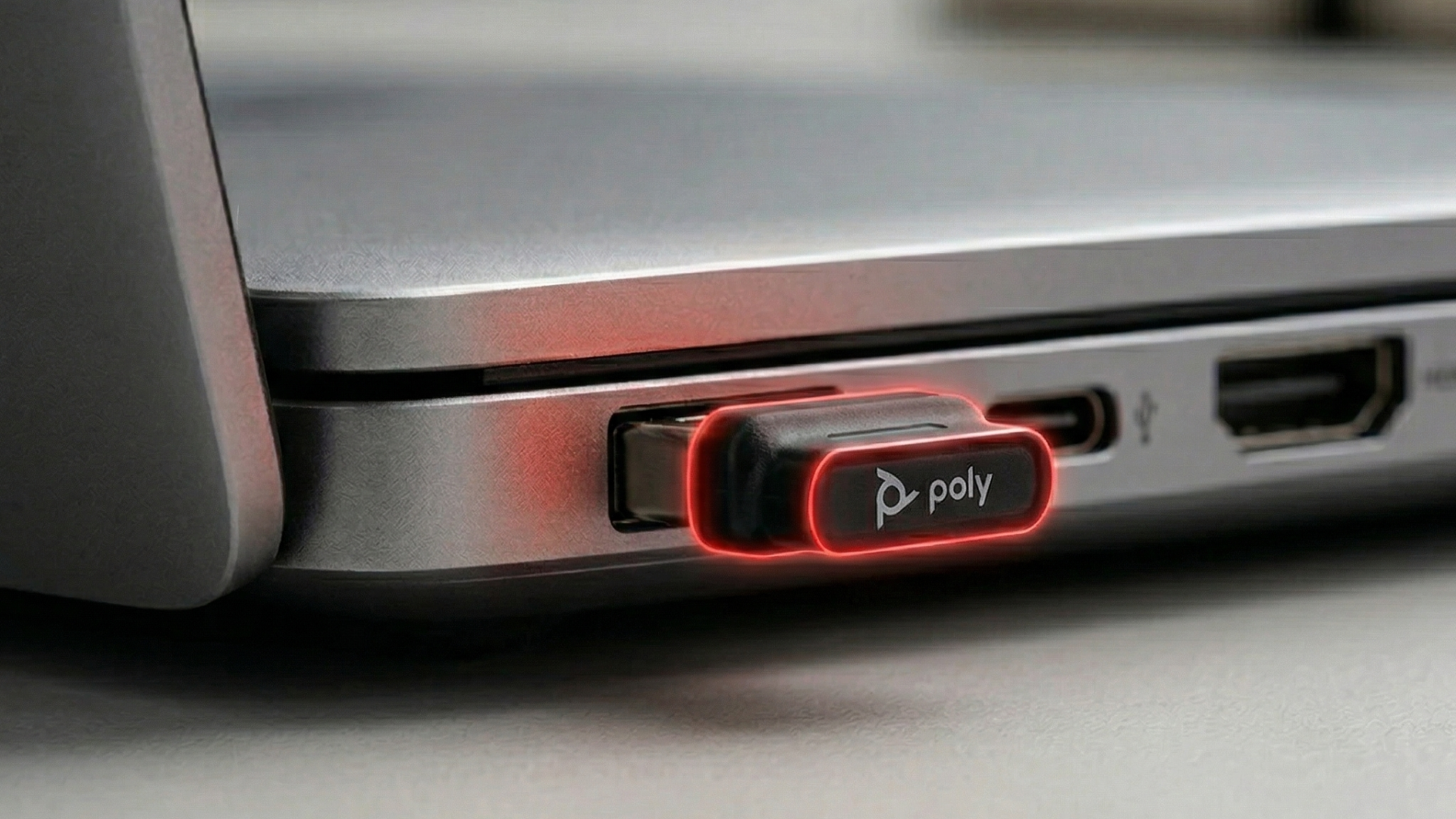
- External Adapter Advantage: A high-quality USB Bluetooth adapter, like the ASUS USB-BT500 (as seen in our research), can completely bypass your PC's internal module.
- Plug-and-Play Reliability: This instantly upgrades your PC’s Bluetooth capabilities, often providing superior range, stronger signals, and more stable connections across all your wireless devices. Think of it as giving your PC a brand new, souped-up antenna for clearer communication.
- Future-Proofing: Investing in a dedicated, modern Bluetooth adapter can resolve current issues and ensure better compatibility and performance for future wireless accessories, reducing conflicts and improving your overall digital workflow.
Proof & Specifics: The Real Solution - Certified Professional Headsets
While the tips above can certainly help you limp by, the *ultimate* solution for professional-grade, no-hassle audio is a headset specifically designed for the job. We're talking about **Microsoft Teams Certified devices** (which, as a bonus, usually play incredibly nice with Zoom and other communication platforms too).
- Engineered for Seamless Communication: These aren't just fancy headphones; they're purpose-built communication tools. They undergo rigorous testing and optimization to handle the demanding requirements of video conferencing software, ensuring seamless transitions between audio profiles without a hitch.
- Consistent Audio Quality: Say goodbye to robotic voices, choppy audio, or mid-sentence drops. You get clear, consistent, high-quality audio whether you’re listening to a presentation or actively participating in a discussion.
- Reliable Noise-Canceling Microphones: Often featuring advanced microphone technologies (like acoustic fence or active noise cancellation directly on the mic), these headsets ensure your voice is heard clearly, even if your dog decides to have a barking fit or the kids are having an impromptu drum session. Translation: your clients won’t hear your dog losing its mind two rooms away.
- Effortless Integration: Dedicated physical buttons for answering/ending calls, muting, and volume control work flawlessly with Teams and Zoom, enhancing your productivity and reducing the need to fumble with software menus.
- Tested & Approved: These devices don't just claim compatibility; they're certified. They've undergone rigorous testing by Microsoft (and often other platform providers) to guarantee top-tier performance and compatibility, effectively reducing your tech headaches to virtually zero.
Why It Matters: Your Professional Reputation is on the Line
Let’s be honest: in today's remote and hybrid work world, your audio quality isn't just a convenience; it's your professional handshake. It impacts how you're perceived, how effective you are, and ultimately, your success.
- Build Trust & Credibility: Crystal-clear communication signals that you’re prepared, professional, and serious about your work. No more awkward "Can you repeat that?" moments that can chip away at your authority.
- Save Time & Energy: Stop wasting precious minutes troubleshooting tech or repeating yourself. With reliable audio, you get straight to business, freeing up mental energy to focus on what truly matters.
- Reduce Stress & Boost Confidence: Eliminate the underlying anxiety of "will my audio work today?" Knowing your gear just *works* lets you relax, be present, and perform your absolute best in every interaction.
- Make (and Keep) Clients: When you sound professional, you instill confidence. It’s a small detail that makes a huge difference in client perception, retention, and the overall quality of your business relationships.

Need a Hand? Our Experts Are Here!
Choosing the right headset can feel like navigating a tech maze, and we totally get it. "Certified" can still mean different things for different setups, and your specific needs are unique. If you're still scratching your head, want to talk through your particular work environment, or just need personalized advice, our expert team at Global Teck Worldwide is here to help. Reach out to us; we’ll help you find the perfect gear that "just works" for you, every single time.
Video Overview
If the embedded video doesn’t load, watch it here.
Need help picking the right headset or speakerphone?
Contact Global Teck Worldwide