

The 10‑Minute Yealink WH64 Bluetooth Headset Setup: From Unbox to First Clear Call
Posted by Global Teck Worldwide Staff on 2nd Oct 2025
The 10‑Minute Yealink WH64 Bluetooth Headset Setup: From Unbox to First Clear Call
Pain point: You just want it to work—without an IT ticket.
What this covers: Yealink WH64 (Mono/Dual) with charging stand and the WH64 Hybrid (the travel version with a DECT USB dongle).
0) Before you start (1 minute)
- Know your version.
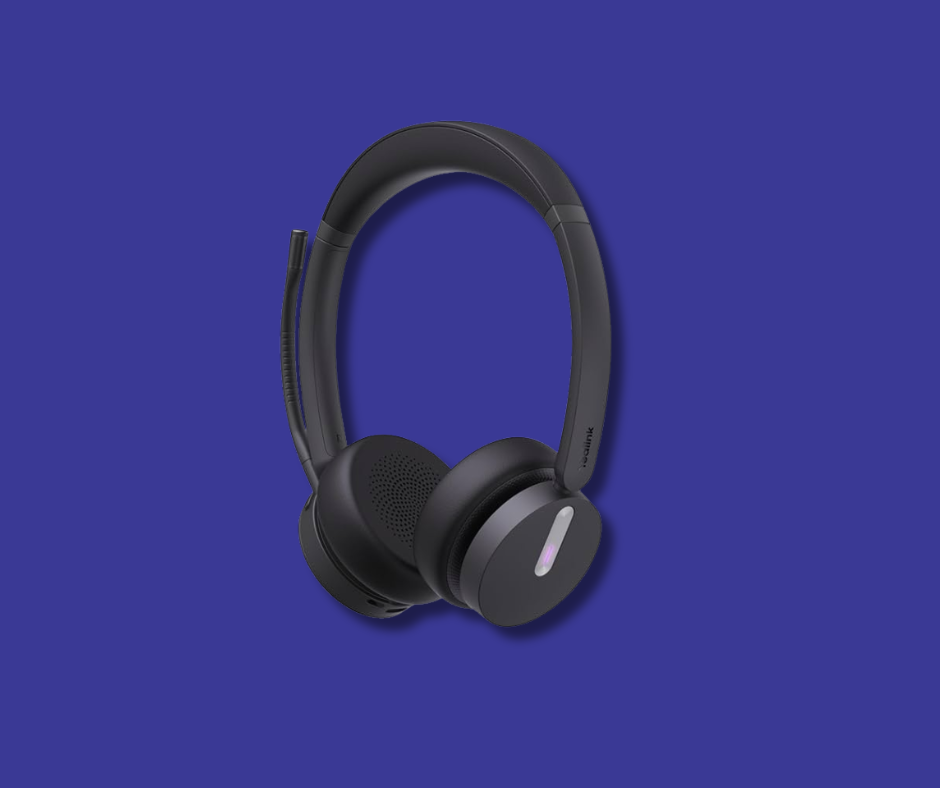
- WH64 (stand): headset + desktop base/charging stand.
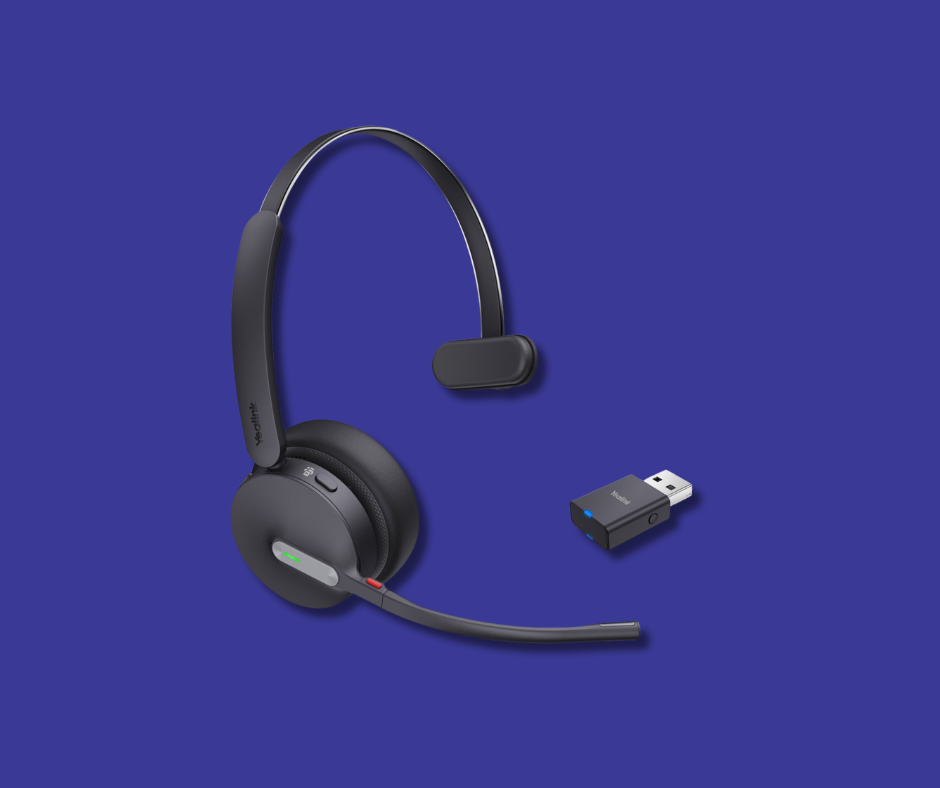
- WH64 Hybrid: portable version with WDD60 DECT USB dongle (no desk base). Both support DECT and Bluetooth.
- What’s in the box (Stand version): headset (Mono or Dual), WHB640 base, power adapter, drawstring bag, USB‑A↔USB‑C cable, Micro‑USB↔USB‑A cable, Quick Start Guide. Optional add‑ons: BLT60 busylight, EHS62 adapter/cables for desk phones.
- Battery & range sanity: ~1.5 h to full charge; DECT range up to 606 ft; Bluetooth range up to 50 m. (You’ll be fine for setup on partial charge.)
- Pro tip—firmware: Yealink recommends updating through Yealink USB Connect on your PC. If you have time, do it now.
Path A — WH64 with charging stand (about 6 minutes)
- Wire the base (1 minute)
- Put the base on your desk and plug in the power.
- Connect the USB from the base to your computer. (The base has multiple USB ports; use the included cables.)
- If you’ll use a desk IP phone later, you can add the telephone/EHS cable after your first call.
- Pair the headset to the base (10 seconds)
For first use, dock the headset into the base—it pairs automatically. (Green LED behaviors confirm charging; see LED table in the quick start.)
- Set it as your computer’s audio (1 minute)
- Windows/Mac: set Yealink WH64/WHB640 as your default input (microphone) and output (speaker).
- In Teams/Zoom: pick Yealink WH64 for mic and speaker in the app’s device settings. (Teams‑certified variants add a dedicated Teams button.)
- Add your mobile phone via Bluetooth (1 minute)
- Put the headset in Bluetooth pairing: hold the Bluetooth/power control for ~3 seconds until the LED alternates (pairing mode).
- On your phone, open Bluetooth and select the WH64.
- Mic placement & first call (30–60 seconds)
- Position the boom two fingers from the corner of your mouth.
- Flip the boom up to mute, down to unmute, and watch the built‑in busylight (external BLT60 optional).
Path B — WH64 Hybrid with WDD60 dongle (about 6 minutes)
- Plug in the dongle (20 seconds)
Insert the WDD60 into a USB port on your computer. On most units the headset and dongle are pre‑paired; your OS will expose it as an audio device right away.
- (If needed) Re‑pair the dongle and headset (30–45 seconds)
- Put the headset into DECT pairing (long‑press until you hear pairing and see the blue flash).
- Put the WDD60 into pairing (its LED flashes blue/red).
- When the WDD60 LED goes solid, you’re paired. Note: one WDD60 connects to one device at a time.
- Set it as your computer’s audio (1 minute)
Choose the Yealink/WDD60 device for mic and speaker in Windows/Mac and in your meeting app. (Teams/UC variants are supported.)
- Pair your mobile phone via Bluetooth (1 minute)
- Slide/press to Bluetooth mode and hold ~3 seconds to enter pairing (LED alternates).
- Select the headset on your phone to connect.
- Mic placement & first call (30–60 seconds)
Same as Path A. Use the boom‑up mute gesture and confirm your busylight is on during the call.
Video Review
If the embedded video doesn’t load, watch it here.
Common pitfalls (and the quick fix)
- No audio in your app: The OS picked the headset, but the app didn’t. Open Teams/Zoom and choose Yealink WH64/WDD60 for both mic & speaker. (Teams‑certified variants add in‑app controls.)
- It won’t pair to my phone: You might be in DECT (dongle/base) mode. Enter Bluetooth pairing (hold ~3 s) and try again.
- Dongle isn’t found: Move the WDD60 to a direct USB port (not a hub), then re‑pair using the blue/red LED sequence.
- Muted without noticing: The WH64 mutes when the boom is up; flip it down to speak.
- Spare parts / desk phone hookswitch: Optional BLT60 busylight and EHS62/telephone cables are supported.
Why DECT and Bluetooth matter (30 seconds of context)
- Roaming & reliability: DECT gives you the long, interference‑resistant range for office/warehouse; Bluetooth lets you take the same headset on the go and pair with your phone. WH64 integrates both; Hybrid adds the WDD60 for travel.
- Real‑world numbers: up to 606 ft DECT range; 50 m Bluetooth; talk time up to 16 h (DECT) / 32 h (BT) on the Dual—plenty for a full day.
Shop the Gear
Need help picking the right headset or speakerphone?
Contact Global Teck Worldwide