
Optimize Audio for Headset-Free Calls: WFH Environment Tips
Posted by Quentin Vernon on 1st Jun 2026
Optimize Audio for Headset-Free Calls: WFH Environment Tips
Clear audio without a headset comes down to three things: a better microphone, a quieter room, and the right software settings. Most professionals working headset-free rely on a laptop's built-in mic or a speakerphone — convenient, but prone to echo, muffled voices, and background noise that undermines calls.
This guide breaks down the environmental, hardware, and software factors that most affect headset-free audio quality, and gives you practical steps to fix each one.
Why Headset-Free Calls Often Sound Bad
Video conferencing platforms like Zoom, Google Meet, and Microsoft Teams have made virtual meetings routine, but poor audio remains a common frustration for headset-free users. The main culprit is usually the built-in laptop microphone: most aren't designed for high-quality voice capture, so they make your voice sound distant and tinny while picking up ambient room noise. The result is a more tiring, harder-to-follow call for everyone else on it.
Your physical environment adds a second layer of difficulty. Hard, reflective surfaces create reverb and echo that degrade speech intelligibility, which is covered in detail below.
Network performance matters too. Insufficient bandwidth or high latency can hurt audio and video quality even when your local setup is fine, and too many open browser tabs or apps can strain your system enough to affect call performance.
Does Your Room Actually Affect Call Quality?
Yes — your recording space is as much a part of your audio setup as your microphone. Sound waves bounce off hard surfaces, creating a muddied, indistinct sound that's harder for other participants to follow. Common culprits include:
- Hardwood or tiled floors
- Bare concrete or plaster walls
- High ceilings
- Large windows or glass doors
- Glass or metal tables
A room with plenty of soft surfaces naturally absorbs sound instead, cutting down echo and improving clarity. Smaller spaces like bedrooms or dedicated home offices often have better inherent acoustics than large, open-plan areas with minimal furnishings — which shifts the goal from just picking a good microphone to also preparing the room it's used in.
How to Get Clear Audio Without a Headset
Getting professional, headset-free audio takes a combination of hardware, environment, and software fixes. Here's how to put each one into practice.
Upgrade Your Microphone
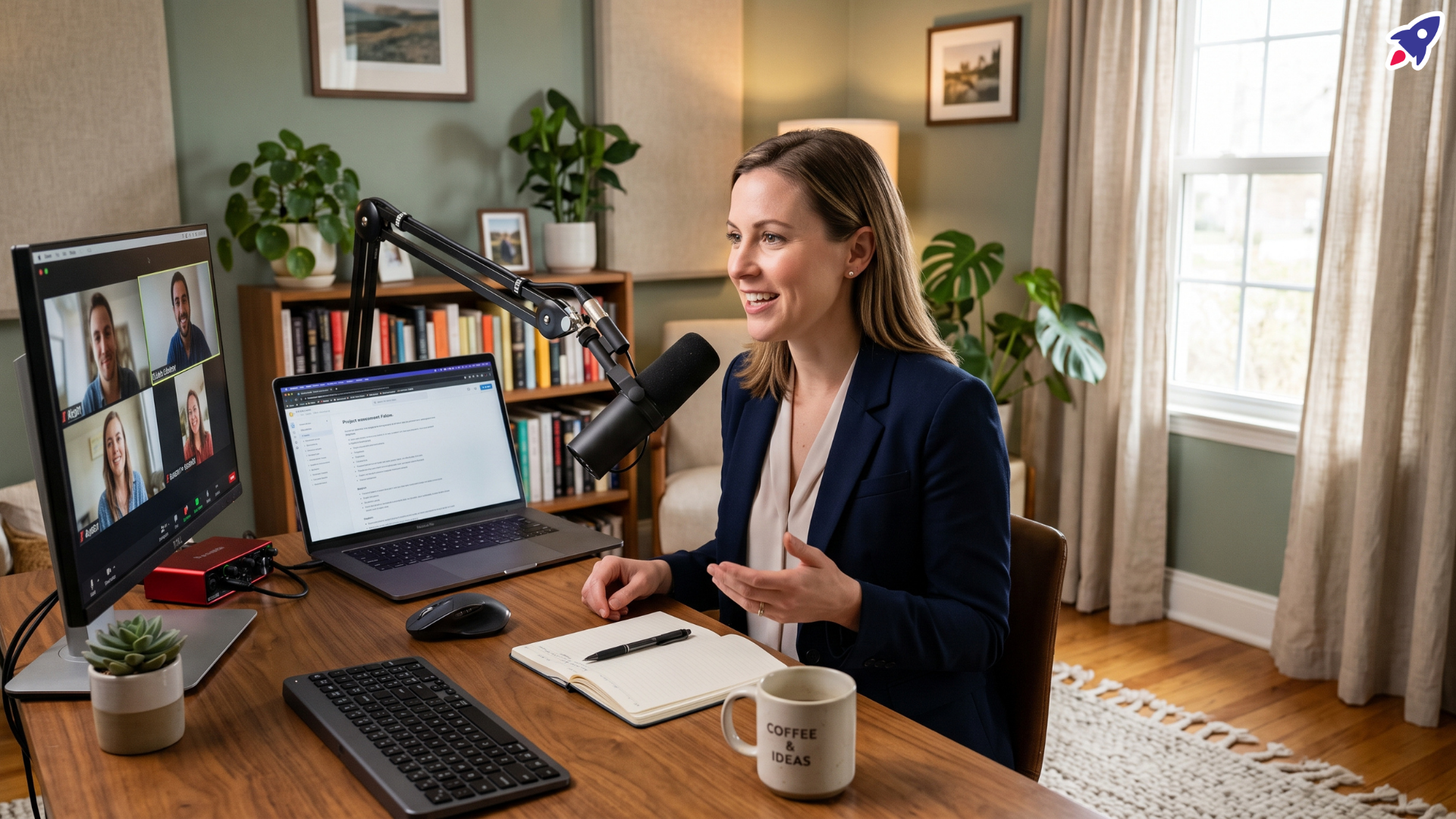
The single most effective way to improve call audio when going headset-free is to use an external microphone. Unlike built-in laptop mics, external microphones are built to capture richer, clearer audio and reduce ambient pickup.
- Choosing a microphone: A USB microphone is the easiest option — models built for podcasting or streaming work well. For more flexibility, a lavalier (clip-on) mic connected through a compact audio interface lets you sit further from your screen while keeping the mic close to your mouth.
- Setting it up:
- Connect the mic: Plug the USB microphone directly into your computer.
- Select it as your device: In your computer's audio preferences (or your conferencing app's settings), set the external microphone as both the input and output device.
- Position it correctly: Place the microphone 20–30 cm from your mouth, angled toward it. A desk stand helps keep this positioning consistent.
- Set the level: Check your mic volume before a call and aim for the level meter to sit roughly two-thirds of the way across at normal speaking volume. Close mic placement in a quiet room usually needs little adjustment.
Fix Your Room Acoustics
Addressing room acoustics is fundamental to reducing echo and improving clarity.
- Pick a better room: Bedrooms and offices with carpets, curtains, and bookshelves are generally friendlier to audio than kitchens or open-plan living areas with hard surfaces.
- Add simple acoustic treatment:
- Hang blinds, drapes, or curtains over windows and glass surfaces to absorb reflections.
- Add soft furniture, rugs, and fabric wall hangings.
- Keep your setup away from HVAC vents or other persistent noise sources.
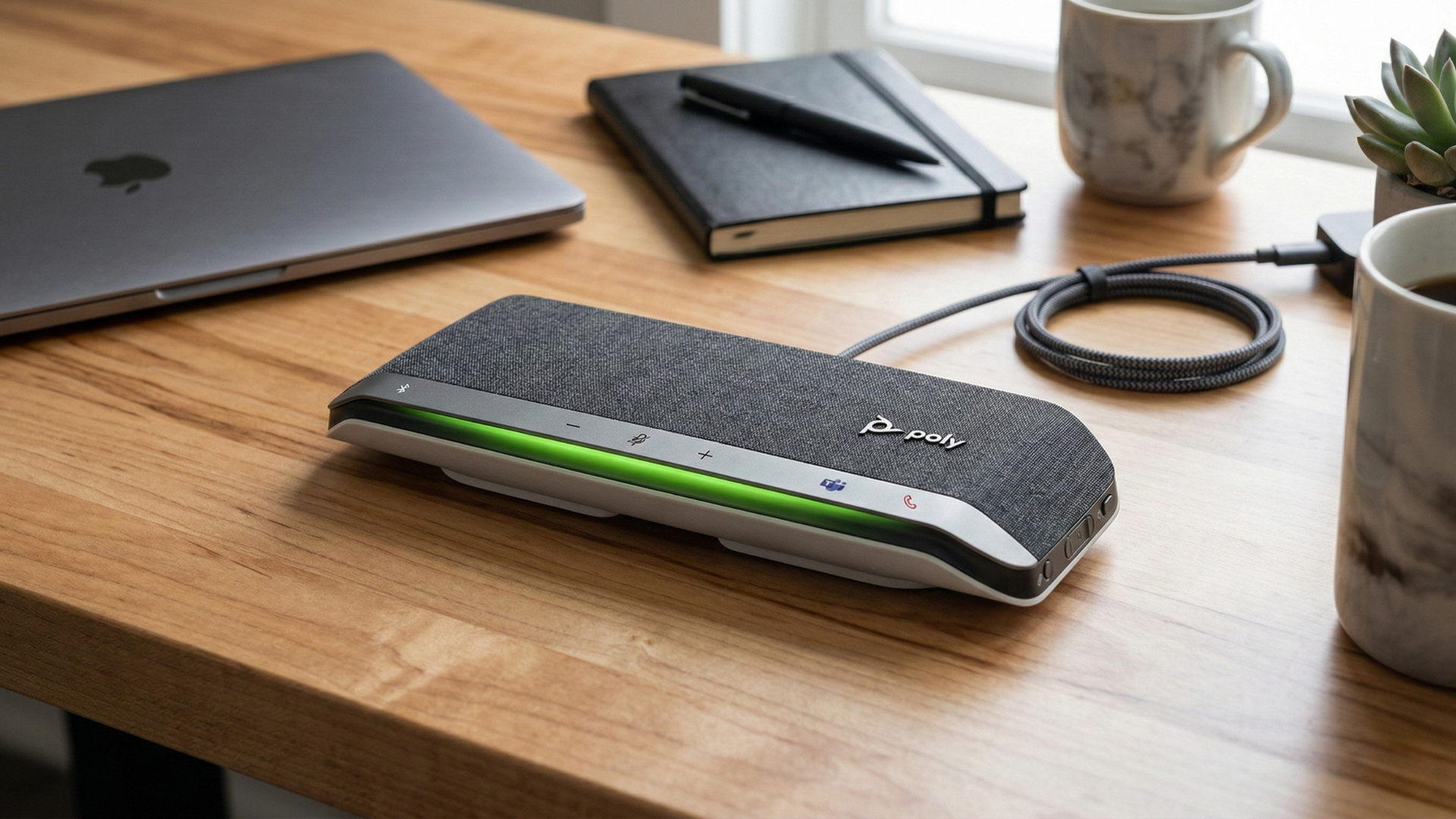
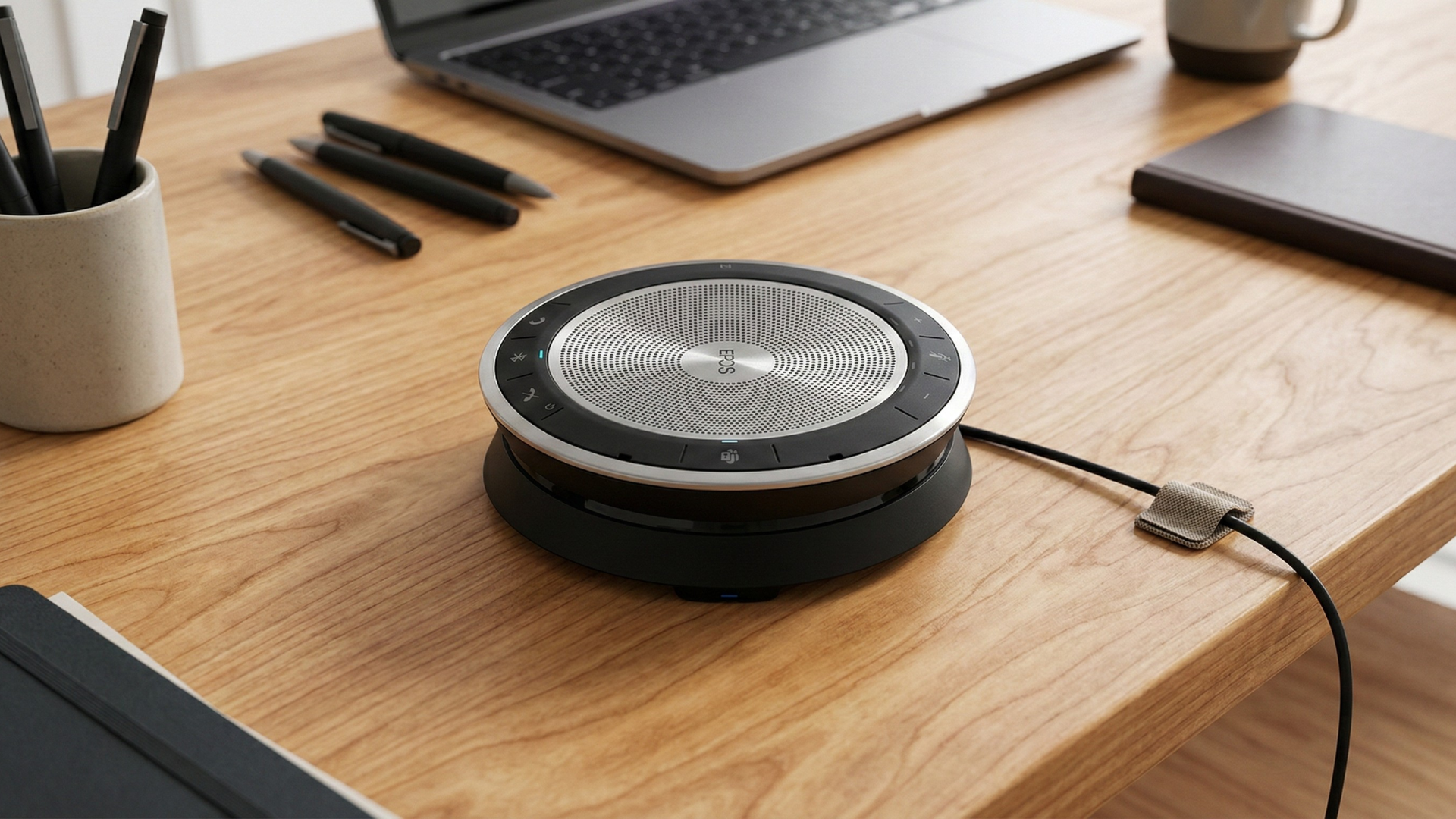
- Optimize speakerphone use: If you're using an external speakerphone, keep the volume at a comfortable listening level to prevent sound from leaking back into the microphone. A treated room (per the tips above) will also noticeably improve speakerphone performance.
Tune Your Software and Network Settings
Modern conferencing apps have built-in tools to cut background noise, and a few network tweaks can prevent transmission issues.
- Turn on in-app noise reduction: Microsoft Teams offers "reduce background noise" and "voice isolation" options in meeting settings. Google Meet automatically attempts to fix echo and offers its own troubleshooting suggestions. Check what's available in your preferred platform.
- Close what you don't need: Extra browser tabs and apps consume system resources that can degrade audio quality — close non-essential ones before a call.
- Improve your connection:
- Run a speed test to confirm sufficient bandwidth and low latency.
- Use a wired Ethernet connection where possible.
- Choose the 5 GHz Wi-Fi band over the more congested 2.4 GHz band.
- Temporarily disable VPN software if you notice quality drops — VPNs can add delay to audio and video.
- Mute when you're not talking: This cuts ambient noise like keyboard clicks, chair scrapes, or background conversations for everyone else on the call. Encourage others to do the same.
Why Environment and Hardware Work Together
Software noise reduction is powerful, but it performs best on a clean audio source — it can't fully compensate for a highly reverberant room or a distant, low-quality microphone. Getting genuinely professional headset-free audio takes a synergistic approach: start with the best acoustic environment you can manage, even if that just means adding a rug or closing a door.
Once the environment is handled, the right external microphone becomes the foundation, capturing your voice clearly enough that your conferencing software's noise reduction can do its job well — filtering out minor remaining distractions without distorting your voice.
For technical decision-makers equipping remote or hybrid teams, that means treating this as a package: quality external microphones paired with basic environmental guidance beats relying on software or built-in hardware alone.
Quick Checklist for Better Headset-Free Calls
Here's a practical checklist to work through:
- Assess your space: Add soft furnishings, curtains, or wall art to absorb sound and cut echo.
- Upgrade your microphone: Get a quality external USB or lavalier mic, positioned 20–30 cm from your mouth with levels set correctly.
- Turn on software noise reduction: Enable background noise reduction and echo cancellation in your conferencing app.
- Stabilize your network: Use wired Ethernet or 5 GHz Wi-Fi, and disable VPNs when they're not needed.
- Mute when you're not talking: Make it a habit, and encourage colleagues to do the same.
At Global Teck Worldwide, we build communication setups for modern work. Explore our range of external microphones and conferencing accessories designed for exceptional audio clarity on headset-free calls.
Frequently Asked Questions
Do I need a headset for clear call audio?
No. A good external USB or lavalier microphone, paired with basic room treatment (soft furnishings, curtains) and your conferencing app's built-in noise reduction, can match headset-level clarity for most calls.
How far should an external microphone be from my mouth?
20–30 cm, angled toward your mouth. A desk stand makes this positioning easy to keep consistent call to call.
Why does my voice echo on calls without a headset?
Echo usually comes from sound bouncing off hard, reflective surfaces in the room — hardwood floors, bare walls, high ceilings, or glass and metal furniture — and being picked back up by the microphone. Adding soft furnishings and lowering speaker volume both help.
Can software noise reduction fix a bad microphone?
Only partially. Noise reduction features in Teams, Meet, and similar apps work best on a clean audio source. They can't fully compensate for a highly reverberant room or a low-quality, distant microphone.
Does room size affect call audio quality?
Yes. Smaller rooms like bedrooms or dedicated home offices generally have better inherent acoustics than large, open-plan spaces with minimal furnishings, since there's less room for sound to reflect and build up echo.
Video Overview
Need help picking the right headset or speakerphone?
Contact Global Teck Worldwide