
HP Poly Studio Desktop App Explained: Setup, Features, and Compatibility
Posted by Quentin Vernon on 28th Sep 2026
HP Poly Studio Desktop App Explained: Setup, Features, and Compatibility
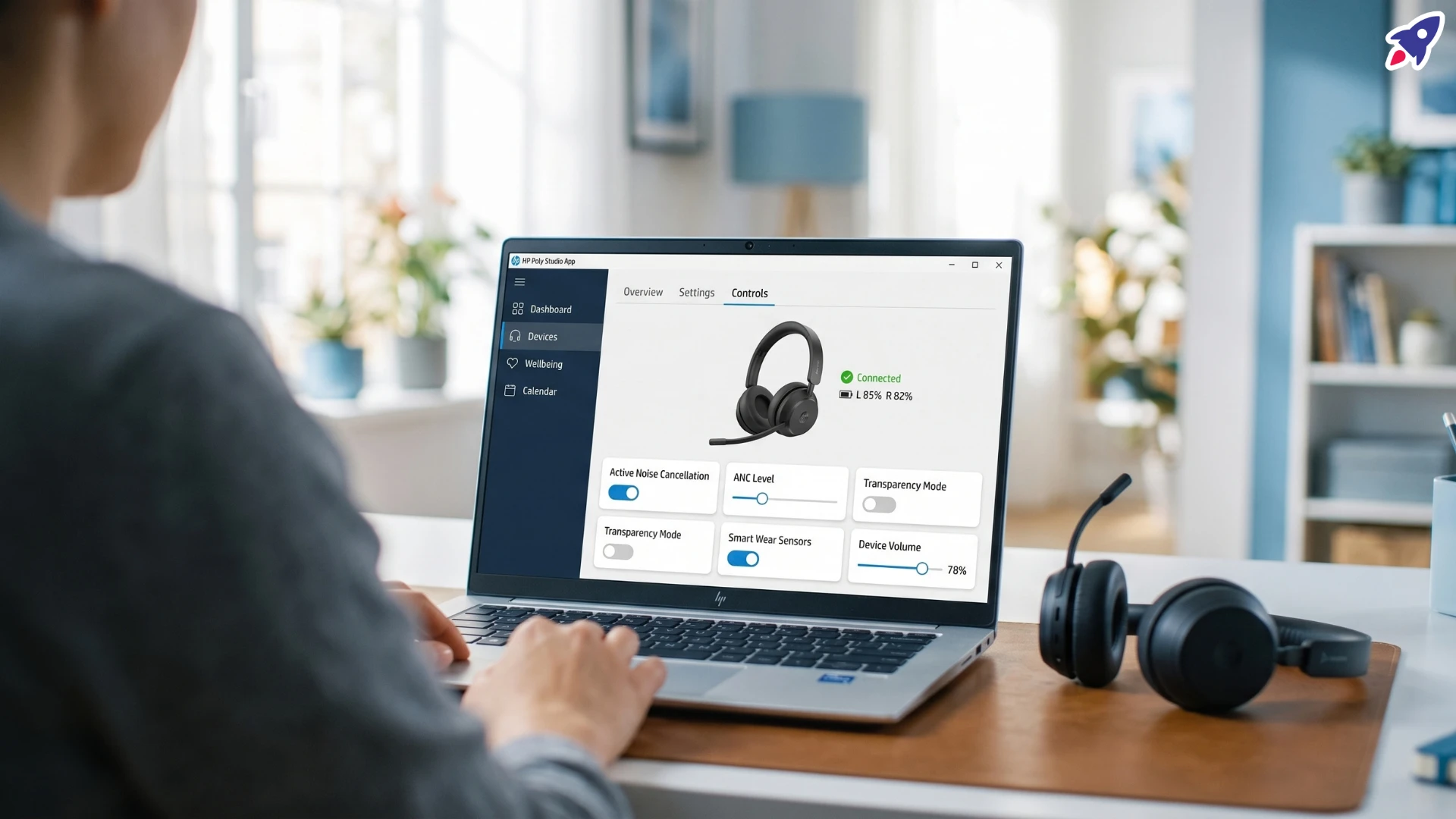
HP Poly Studio Desktop is a device-management app for supported HP and Poly hardware. It lets you personalize available device settings, install supported software updates, and connect devices to Poly Lens Cloud for business management. It is also the successor to the Poly Lens Desktop app.
If you're setting up a headset or webcam, the practical question is simple: where do I change how this device behaves? If you're deploying equipment across a team, there's a second question: which settings should employees control, and which should IT manage?
This guide focuses on the desktop app, with the compatibility checks and setup steps to go through before you start.
Is HP Poly Studio the same as Poly Lens?
HP Poly Studio Desktop is the new name for Poly Lens Desktop. It is not a replacement for Poly Lens Cloud. HP renamed the Desktop, Mobile, and Room apps on January 5, 2026, with version 5.0 of the desktop app, alongside a redesigned interface and new functionality. HP's release notes state that Poly Lens Cloud and its device-management functionality did not change with the rebrand.
A guide that mentions "Poly Lens Desktop" is describing the predecessor of the app you now see as HP Poly Studio Desktop. Instructions for Poly Lens Cloud refer to the separate cloud-management environment that IT admins use.
Which HP Poly Studio app should you use?
HP offers three versions of the app. Pick the one that matches your deployment instead of assuming they're interchangeable.
- HP Poly Studio Desktop: for managing supported devices connected to a computer. HP provides Windows, Windows ARM, and macOS versions.
- HP Poly Studio Mobile: for personalizing and updating supported Poly Bluetooth devices from an iOS or Android phone.
- HP Poly Studio Room: for managing supported equipment in PC-based conference rooms running Microsoft Teams Rooms or Zoom Rooms on Windows.
For a personal workstation, start by checking Desktop compatibility. For a dedicated meeting-room computer, follow the Room app's deployment requirements instead.
What can you do with HP Poly Studio Desktop?
Personalize headset and speakerphone behavior. The app exposes settings for supported headsets and speakerphones. Categories can include language, ringtones and volume, sensors and presence, active noise cancellation, voice prompts, and custom buttons. Only the settings that apply to your connected device show up.
For example, a headset with smart sensors may let you answer a call by putting the headset on, or mute the mic when you take it off. That doesn't mean every Poly headset supports those actions. HP notes that many, but not all, Poly headsets have smart sensors.
Start with the behavior that affects your work the most. Is there an alert that keeps interrupting you, a sensor setting you want to review, or a control you want to remap? Treat the app as a configuration tool, not a reason to change every default.
Adjust supported camera settings. For compatible cameras, the Controls page can include brightness, contrast, saturation, sharpness, white balance, and backlight compensation. Which controls you get depends on the camera model. In the desktop app, go to Devices, select your camera, then open Controls.
A useful routine: check your image in the lighting you normally work in, change one setting at a time, and review the result in a preview or a test call. That tells you more than adjusting five sliders at once and guessing which one helped.
Maintain device software. The app checks for software updates for your connected devices and shows an update option when one is available. Updating the desktop app itself is a separate process from updating a headset, camera, or other peripheral. An up-to-date app doesn't automatically mean your device is up to date.
Which devices work with HP Poly Studio Desktop?
Compatibility depends on the exact model, the connection type, and your computer's platform. These examples come from HP's documentation and are not a complete list:
- Wired headsets: Poly Blackwire 3200 and 3300 series; HP Poly Mission 400, 600, and 800 series
- Wireless headsets: HP Poly Focus 620/625 and 620/625 Fold; Poly Voyager Focus 2 UC; Poly Voyager 4300 UC series
- Speakerphones: Poly Sync 20, Sync 40, and Sync 60
- Cameras and video bars: Poly Studio P5, R30, and V12, plus supported HP webcams
Check these against HP's detailed support tables for your connection and platform. Bluetooth and USB are not equal support routes. For example, HP lists the Poly Voyager 4300 UC series as fully supported over Bluetooth, while the Voyager 4300 Office series is listed as not compatible over Bluetooth. Cameras are managed over a USB cable only.
Before you buy or deploy equipment, check the exact model, not just whether it belongs to the Poly family.
Check your computer, too
HP publishes specific operating system requirements for the app. Supported Windows versions include Windows 11 (23H2, 24H2, 25H2), Windows 11 on ARM (25H2), and 64-bit Windows 10 22H2. On Mac, HP lists macOS 14 Sonoma, macOS 15 Sequoia, and macOS 26 Tahoe. Installing on Intel-based Macs is not supported.
HP also states that the desktop app is not supported on Chromebooks, and it doesn't support running the app in Linux. These are application requirements. A peripheral working with your computer at the hardware level doesn't mean its management app runs on the same platform.
How to download and set up HP Poly Studio Desktop
- Download the correct installer. Go to HP's HP Poly Studio App product page, choose the download for your operating system, and follow the on-screen instructions. You need administrative privileges to install or upgrade the app, so contact IT if you're on a managed computer.
- Connect your supported device. Depending on the model, HP documents USB, Bluetooth direct pairing, compatible USB wireless adapters (such as the BT600 or BT700), and supported office bases. Establish one documented connection first, then confirm the device shows up in the app.
- Choose how to sign in. HP provides a Continue as Guest option, and guests can still manage their devices. For business equipment, follow your organization's onboarding process. HP supports several ways to tie desktop installs to Poly Lens Cloud, including email invitations, Microsoft Entra ID domain claims, and client tokens for bulk deployment.
- Open the device's settings. Select Devices, then your connected device. For headsets and speakerphones, open Settings. For camera image adjustments, open Controls. What you see depends on the hardware.
After your first changes, test the device in the conferencing app you actually use. Check the mic, speaker, camera, and any call-control behavior you rely on before your next important meeting.
How to update the app and connected devices
Updating a headset, camera, or other device. Select the device and check its Overview page for available software. When an update is offered, follow the prompts until it finishes. As good practice, keep the device connected and avoid using it during the update, and run it outside an active call instead of right before a meeting.
Update support can differ by platform. HP's documentation, for example, lists supported HP webcams as not supported for software updates on Windows ARM PCs. A compatibility listing is not a promise that every function works on every platform.
Updating HP Poly Studio Desktop itself. Open Settings, go to App Settings, then Software Update. When an update is available, select Update, review the release notes if you want, and follow the prompts. The app installs the update and relaunches automatically.
On organization-managed installs, update options and timing can be governed by Poly Lens policies. Follow IT's update process instead of assuming every user should install a release on their own.
How does HP Poly Studio help IT manage workplace devices?
When it's connected to Poly Lens Cloud, HP Poly Studio Desktop becomes part of an organization's device-management workflow, not just a personal settings utility. Admins can use cloud policies to manage supported configurations and software updates.
For updates, admins can choose between user-controlled updates, user-deferred updates (users can postpone a limited number of times before the update is enforced), and silent or immediate updates. Starting with Desktop version 5.1, admins can also lock supported app and device settings through Poly Lens policies, so users can't change them.
That leads to a useful deployment decision: which settings need a consistent company standard, and which should stay personal preferences? Make that call before rollout instead of letting employees discover the boundaries on their own.
Frequently asked questions
Do I need an account to use HP Poly Studio Desktop?
No. HP documents a guest workflow that lets you manage your devices without creating an account. On a work computer, use the onboarding process your organization specifies.
Does HP Poly Studio Desktop work with Microsoft Teams and Zoom?
Yes, but support varies by operating system, device, and connection. On Windows, HP lists call control for Teams over USB and for Zoom over both USB and Bluetooth direct. On Mac, Bluetooth direct only covers device settings and software updates, not call control. Check your exact combination instead of assuming USB and Bluetooth behave the same.
Should I install Desktop on a Microsoft Teams Rooms computer?
No. For Microsoft Teams Rooms on Windows, follow the HP Poly Studio Room instructions. HP states that Studio Desktop must not be installed on the same Teams Rooms PC, and to remove it if it's already there.
Why is a setting missing or unavailable?
First, check whether the setting applies to your device, since only applicable settings categories appear. On a managed deployment, a supported setting may also be locked by an admin policy. Those are two separate checks: hardware capability and organizational control.
Make software compatibility part of your buying decision
When you pick a headset, speakerphone, or webcam, ask more than "does it connect to my computer?" Ask which settings and update functions work with this exact model, on your computers, using your chosen connection.
Before replacing existing equipment, review its available controls and documented update options. Before buying new equipment, confirm the management experience alongside the hardware specs. That gives you a clearer basis for deciding whether a device fits the way you, or your team, actually work.
Official HP resources
Software and platform compatibility
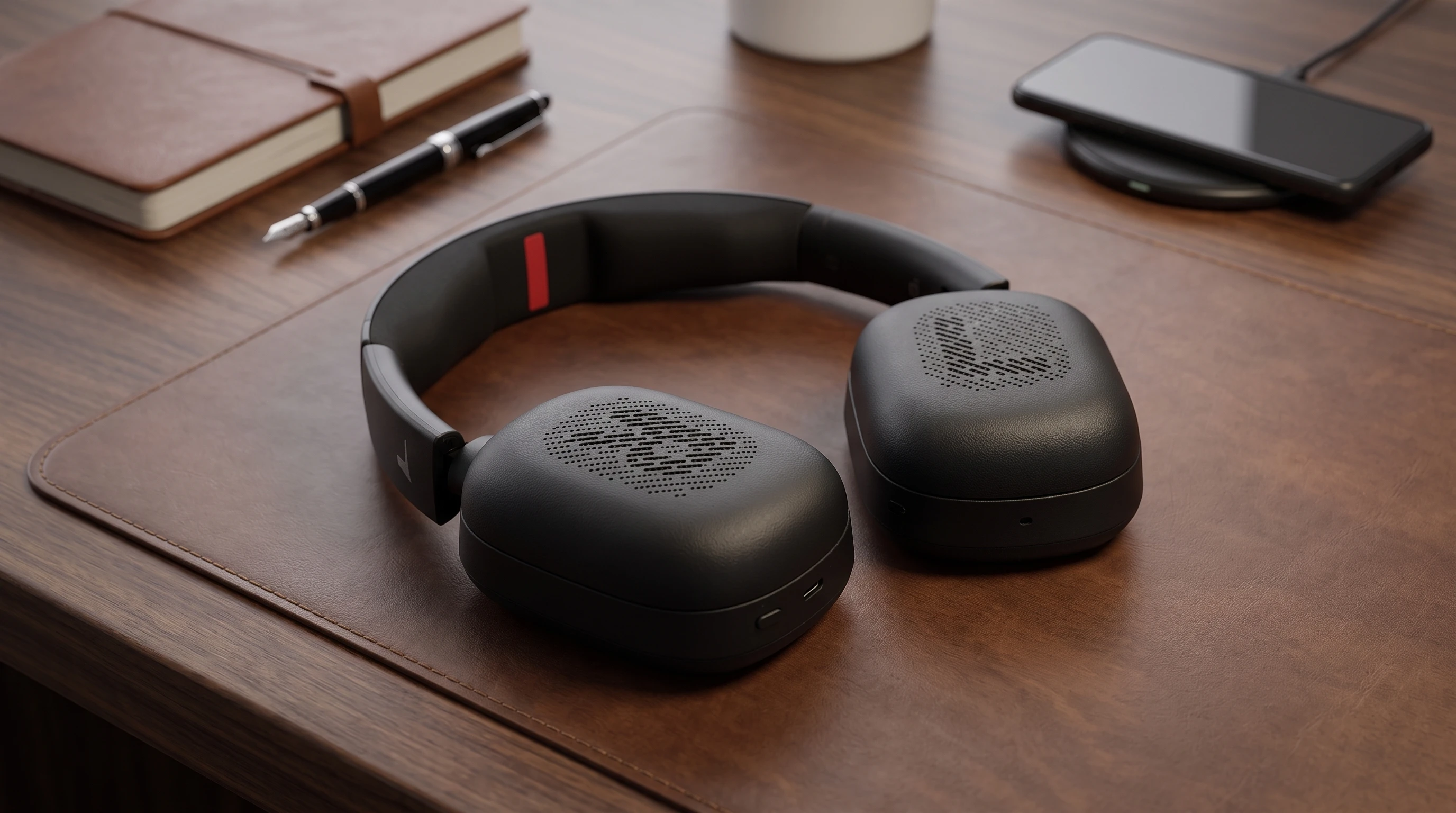
The HP Poly Focus 620/625 is certified for Microsoft Teams, Zoom, and Google Meet, and it's also Microsoft Teams Open Office Certified. Both models connect via Bluetooth Core 6.0, USB audio, or a USB-C cable, and support Bluetooth Direct through an included USB-C BT700 adapter, with a USB-C to A adapter also included in the box.
Poly Mission Headsets Review: 625, ANC, Mic Noise Tests, Teams, Zoom & Google Meet
Need help choosing a headset or webcam that works with HP Poly Studio?
Contact Global Teck Worldwide