
How to Seamlessly Switch Your Headset Between Desktop and Laptop
Posted by Quentin Vernon on 6th Apr 2026
How to Seamlessly Switch Your Headset Between Desktop and Laptop
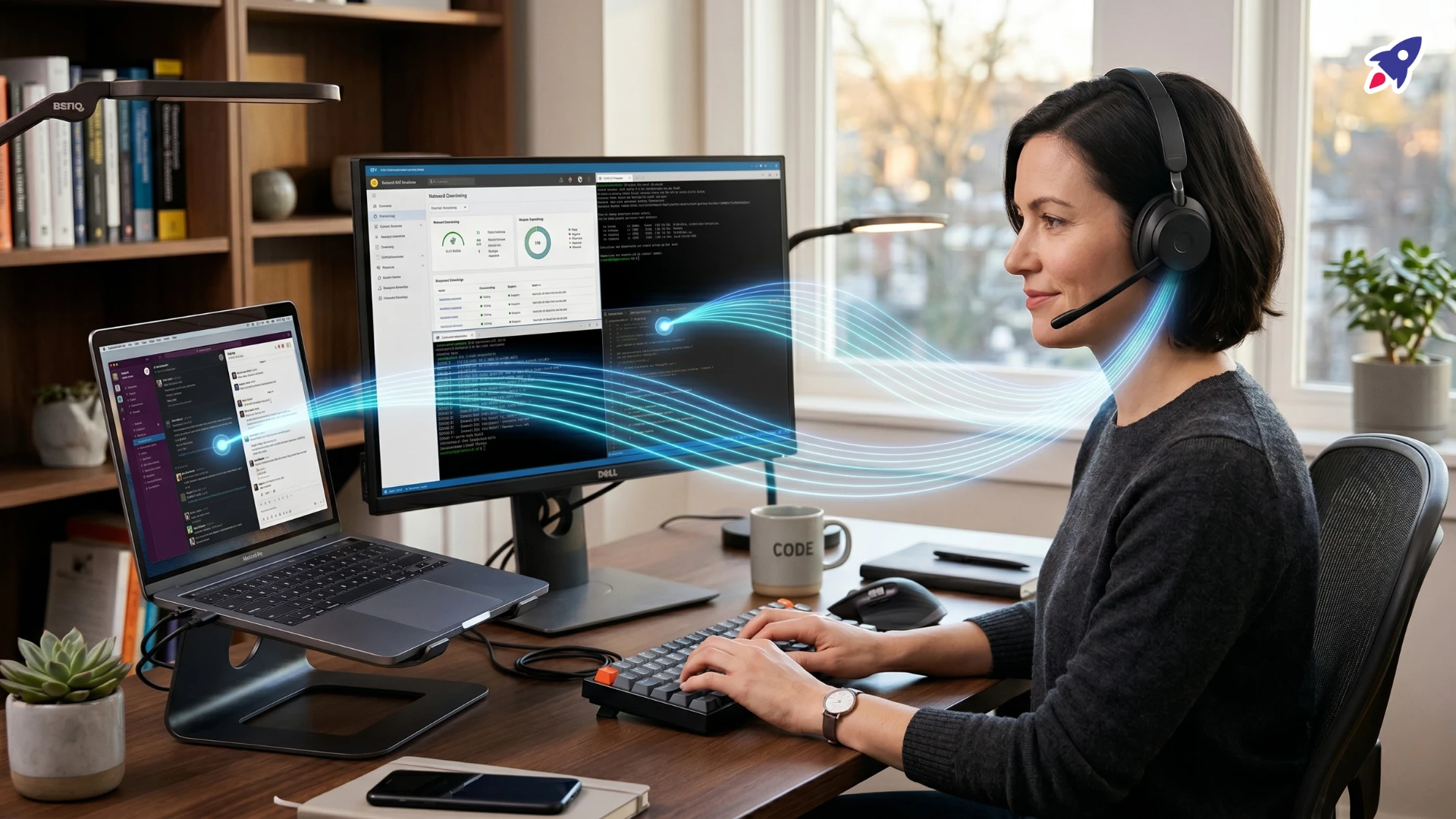
If you use one headset for laptop and desktop work, you have probably run into the same frustrating pattern: the headset connects, but audio goes to the wrong device, the microphone disappears before a meeting, or the headset refuses to switch cleanly when you need it most.
In most cases, the headset is not broken. The problem usually comes from one of three places: the headset is still prioritizing the other device, Windows is using the wrong input or output, or an app like Microsoft Teams or Zoom is overriding your system audio settings.
This guide shows you how to switch headset between desktop and laptop more reliably, troubleshoot common multi-device audio problems, and fix the most common reasons a headset connected but no sound is playing.
Quick Answer: How Do You Switch a Headset Between a Laptop and Desktop?
To switch headset between desktop and laptop, stop audio on the device you are leaving, then select the headset as both the speaker and microphone on the device you want to use. If your headset supports Bluetooth multipoint, it may stay connected to both computers at once, but many models still handle active audio from only one device at a time.
If you use a USB headset or wireless dongle, switching is often more reliable when the dongle stays with one computer instead of moving back and forth. If your headset connected but no sound is playing, check three things in this order: your computer sound settings, your meeting app audio settings, and your headset connection status.
What Usually Causes Headset Switching Problems?
When people ask, “How do I switch a headset between a laptop and desktop?” they are usually dealing with one of a small number of repeat issues. The problem is often not the headset alone. It is the interaction between headset behavior, system settings, and app-level audio controls.
1. Multipoint does not always mean seamless live switching
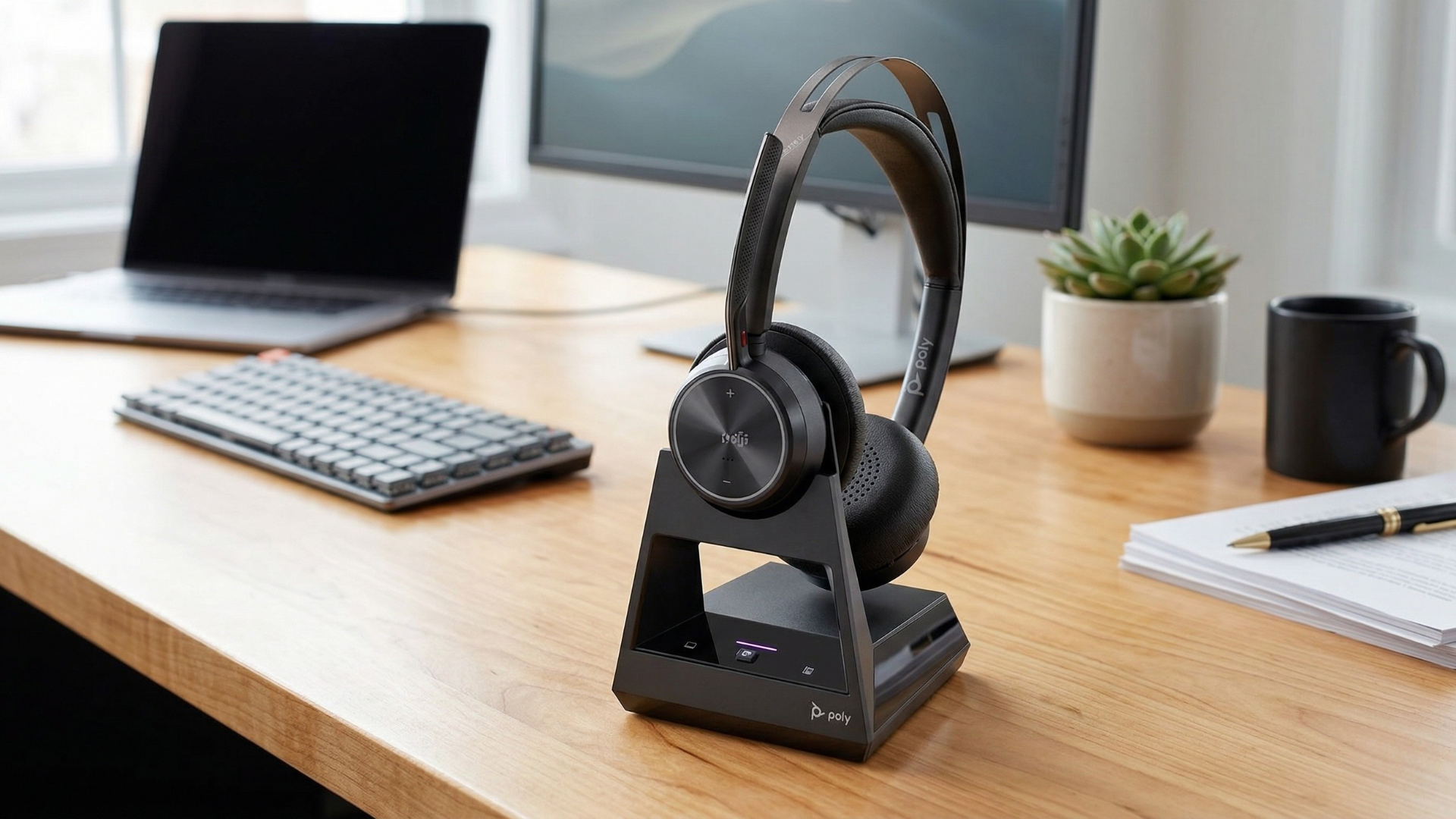
Many Bluetooth headsets support multipoint, which means they can stay connected to two devices at once. That does not always mean both devices can play sound at the same time. In many cases, the headset keeps the connection to both devices but gives active audio priority to one until playback or a call stops.
2. Windows may be using the wrong speaker or microphone
A headset can show as connected in Bluetooth settings while Windows is still sending sound to laptop speakers, monitor speakers, or another output device. The same problem can happen with microphone input. This is one of the most common reasons users say their headset connected but no sound is playing.
3. Teams, Zoom, or another app may override system settings
Meeting apps often keep their own speaker and microphone assignments. That means your headset may work for system audio but fail inside Teams or Zoom because the app is still assigned to another device.
4. Old pairings, firmware issues, or Bluetooth driver conflicts
If your headset has been paired to several devices over time, it may reconnect to the wrong one or behave inconsistently during switching. Outdated headset firmware or Bluetooth drivers can also create headset pairing issues with multiple devices.
5. Your headset may not be built for multi-device work
Some older or entry-level headsets do not support a true multi-device headset setup. In that case, the issue may not be a setting at all. The headset may simply need to disconnect from one computer before it can connect to the other.
Signs You Are Dealing With a Multi-Device Headset Issue
You are likely dealing with a headset not switching between devices problem if you notice any of these:
- You have to forget and re-pair your headset every time you switch computers.
- Your headset connects to the laptop, but no sound plays.
- Your headset microphone stops working after switching devices.
- Audio keeps defaulting to the wrong output device.
- Teams or Zoom does not recognize your headset even though Windows does.
- Your headset shows as connected to both computers, but audio only works on one.
- You spend time before every meeting re-selecting the correct speaker and microphone.
What to Check First
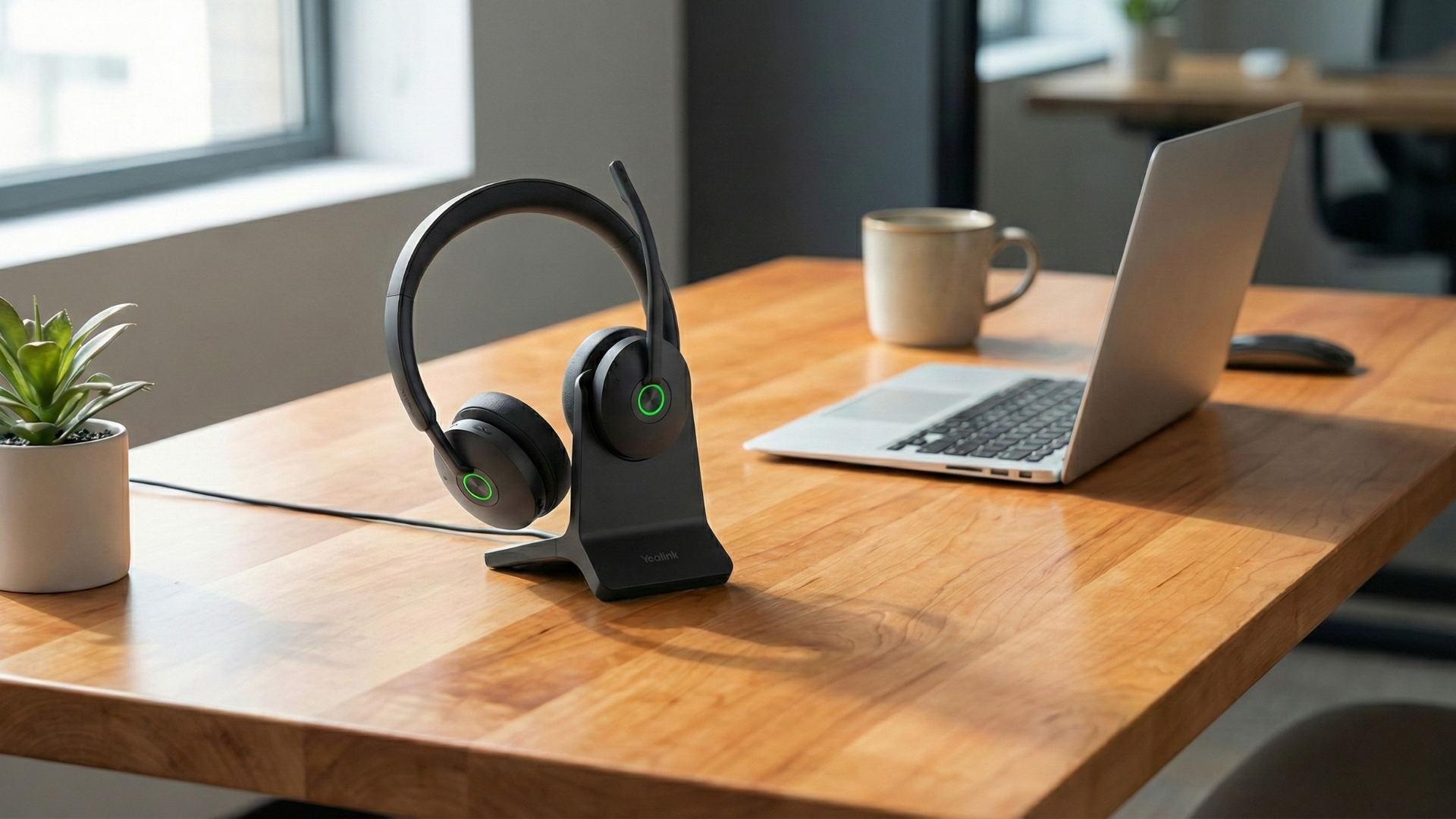
Before you start unpairing devices or replacing hardware, work through these checks in order. These steps solve many issues when you want to use one headset for laptop and desktop work.
1. Check battery and power
Make sure the headset is turned on and has enough charge. Low battery can cause unstable Bluetooth behavior, dropped audio, poor microphone performance, and failed switching between devices.
2. Confirm the headset is connected to the right computer
Open Bluetooth settings on both the desktop and laptop. Check whether the headset is paired, connected, or trying to reconnect to a different device. If both computers are nearby, turn Bluetooth off on the computer you are leaving and test again.
3. Select the headset in Windows sound settings
On Windows, open Sound settings and select your headset under both Output and Input. This matters because the speaker and microphone can be assigned separately. Your headset may be selected as the speaker while the built-in microphone is still selected as the input.
4. Check Teams and Zoom audio settings
In Zoom, open Settings, then Audio, and test both the speaker and microphone. In Microsoft Teams, open Settings, then Devices, and choose your headset as the audio device. This is a common fix when the headset works in Windows but fails during calls.
5. Pause audio on the first device before starting audio on the second
If your headset uses Bluetooth multipoint, pause music, videos, or system audio on the desktop before joining a meeting on the laptop. This helps the headset release the active audio path and switch more predictably.
6. Restart the app before restarting the computer
If the problem only happens in one app, close and reopen that app first. If the issue continues, restart the computer and reconnect the headset.
The Most Reliable Way to Switch Between Devices
If you regularly use one headset for laptop and desktop work, the most reliable routine is simple:
- Stop audio or calls on Computer A.
- Make sure the headset is no longer actively playing audio there.
- Select the headset as both output and input on Computer B.
- Open Teams, Zoom, or your meeting app and confirm the same device is selected there.
- Start the call or audio only after the device path is confirmed.
This reduces unnecessary reconnect cycles and makes it easier to switch headset between desktop and laptop without confusion.
Fixes That Often Help
After the first checks, use these fixes to improve your multi-device headset setup and reduce repeated switching problems.
Use a clear switching routine
For most Bluetooth headsets, the cleanest routine is: pause audio on Computer A, choose the headset on Computer B, then start the call or media session on Computer B. This prevents both devices from competing for the same audio path.
Use a dedicated USB dongle when available
A USB dongle can improve connection stability, range, and call consistency compared with built-in Bluetooth on some computers. For desktop setups, leaving the dongle plugged in can create a more reliable connection path. For laptops, direct Bluetooth may still be more convenient when you move between locations.
Update headset firmware and Bluetooth drivers
Headset firmware updates can improve connection stability and multi-device behavior. Bluetooth driver updates can also help when a headset not switching between devices becomes a recurring problem.
Remove old Bluetooth pairings
If your headset has been connected to old laptops, phones, tablets, or previous workstations, clear unused pairings. Then pair only the devices you actively use. This reduces the chance that the headset reconnects to the wrong device when it powers on.
Separate your desktop and laptop connection methods
If your headset supports both direct Bluetooth and a USB dongle, use the dongle for the desktop and Bluetooth for the laptop. This can make a multi-device headset setup more predictable because each computer has a distinct connection path.
Set app defaults before your meeting starts
Before a call, open your meeting app and confirm the headset is selected as both speaker and microphone. This is especially helpful for users who switch between a laptop docking station, desktop tower, Bluetooth headset, webcam mic, and monitor speakers.
Troubleshooting by Symptom
Headset connected but no sound on laptop
If your headset connected but no sound is playing, check whether Windows is sending output to laptop speakers, monitor speakers, or another audio device. Then check whether another paired computer is still playing audio through the headset. Pause that audio and test again.
Headset mic not working after switching devices
If your headset mic not working after switching devices, confirm the headset is selected as the input device in Windows and inside your meeting app. If the microphone still does not work, disconnect and reconnect the headset, then restart the app.
Headset not switching between devices
If the headset not switching between devices, turn Bluetooth off on the device you are leaving, then reconnect from the device you want to use. If this works, the headset may be prioritizing the first device or failing to release the active audio session cleanly.
USB headset not recognized on desktop
Try a different USB port, avoid unpowered USB hubs, and check for driver or firmware updates. If the headset uses a USB-A or USB-C dongle, make sure the adapter is fully seated and not affected by a docking station or port issue.
Teams or Zoom audio switching problems
Select the headset directly inside the app instead of relying only on system defaults. Then make a test call or run an audio test before joining a live meeting.
When This Advice May Not Apply
These fixes cover many common remote work headset issues, but they may not solve every setup.
- Older Bluetooth headsets: Some models do not support multipoint and must be manually disconnected before they can connect to another computer.
- Non-Bluetooth wireless systems: Some headsets use a proprietary wireless dongle designed for one computer at a time.
- Hardware failure: A damaged headset, USB port, dongle, or Bluetooth adapter may require replacement.
- Company-managed computers: IT policies, blocked drivers, or restricted Bluetooth settings may limit what users can change.
- macOS or Linux workflows: The same principles apply, but the menus and device settings will differ from Windows.
When the Problem Is the Headset, Not the Settings
Sometimes the problem is not the workflow. Sometimes the headset itself is a poor fit for the way you work.
- You switch between computers many times per day.
- You need dependable call audio on both systems.
- Your current headset does not support Bluetooth multipoint.
- Your desktop Bluetooth connection is unstable.
- The same issue keeps happening after pairing cleanup, driver updates, and app checks.
If that is the pattern, the problem may no longer be your settings. It may be the limits of the hardware.
FAQ: Switching a Headset Between Desktop and Laptop
Can one headset connect to two computers at once?
Yes, if the headset supports Bluetooth multipoint or another supported multi-device connection method. However, many models still route active audio from only one device at a time.
How do I switch a headset between a laptop and desktop?
Stop audio on the first device, then select the headset as both the speaker and microphone on the second device. After that, confirm the same selection inside Teams, Zoom, or any call app you are using.
Why is my headset connected but no sound is playing?
Your system may be using a different output device, your meeting app may have a separate audio setting, or another paired device may still be holding the active audio connection.
Why does my headset microphone stop working after I switch computers?
The new computer or meeting app may not have selected the headset as the input device. Check microphone settings in both your operating system and your call app.
Is a USB dongle better than built-in Bluetooth?
For many professional headset setups, a dedicated USB dongle can provide a more stable connection than built-in Bluetooth, especially on desktops, docking stations, or busy wireless environments.
What is the best headset setup for hybrid work?
A strong hybrid work headset setup usually includes multipoint support, reliable microphone performance, a stable USB dongle option, and clear app-level settings for Teams, Zoom, or other meeting tools.
What to Do Next
To switch headset between desktop and laptop more reliably, start with the basics: confirm the headset is connected to the right computer, select it as both input and output in Windows, check the same settings inside Teams or Zoom, pause audio on the first device, and update firmware or drivers.
If the issue continues, clear old Bluetooth pairings and test whether the problem follows the headset, the computer, or the app. That tells you whether the real issue is hardware, Bluetooth behavior, or software configuration.
Need help picking the right headset or speakerphone?
Contact Global Teck Worldwide