
How to Fix a PC Headset Microphone Not Working (Windows 10 & 11 Guide)
Posted by Quentin Vernon on 20th Apr 2026
Fixing PC Headset Mic: Troubleshooting Common Audio Input Issues
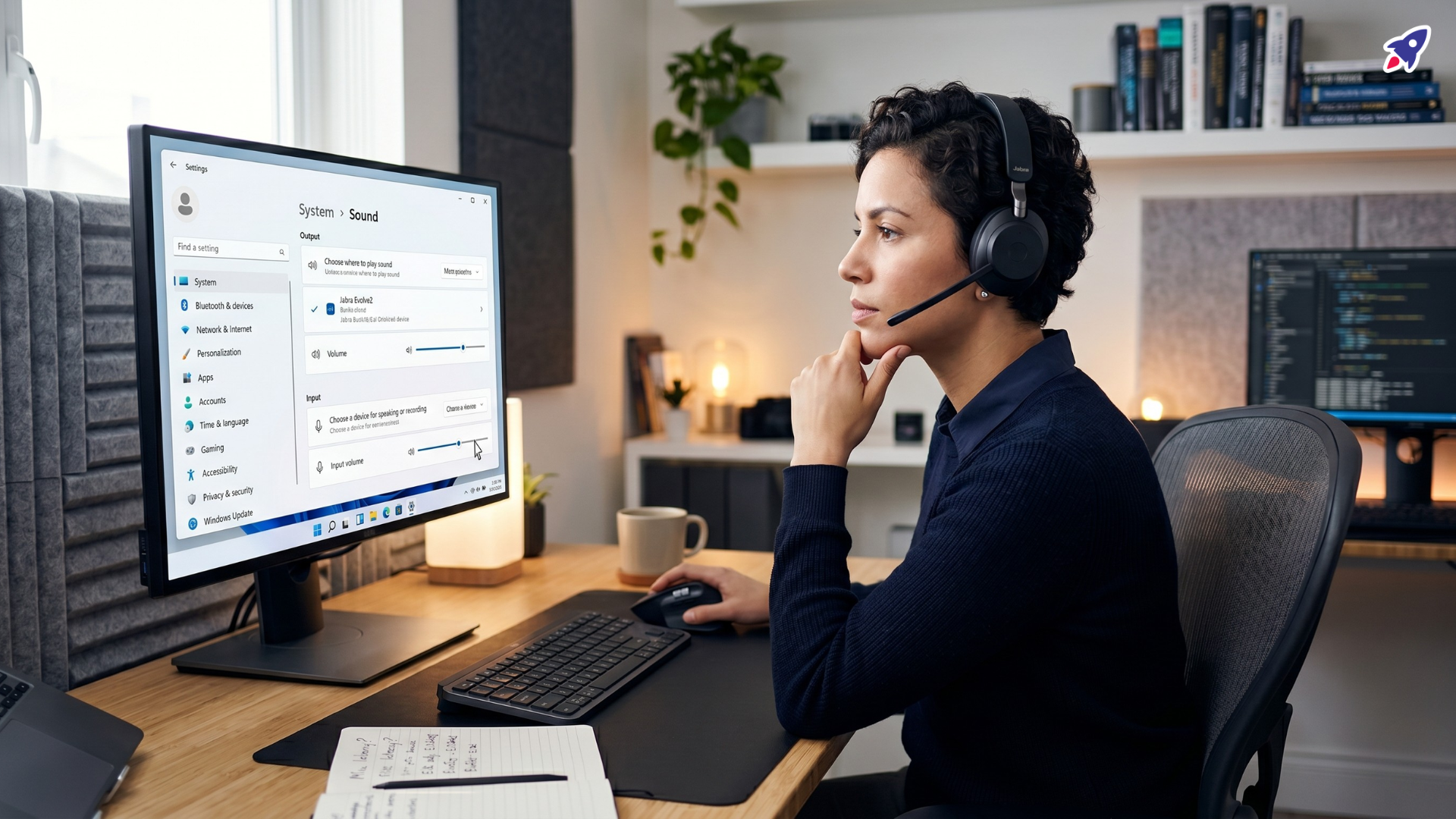
If your PC headset microphone is not working, the problem is usually caused by incorrect Windows audio settings, microphone permissions, outdated drivers, or connection issues. Whether you're using a USB headset, Bluetooth headset, or a 3.5mm wired headset, this guide shows how to fix a headset mic that's not being detected on Windows 10 and Windows 11.
What’s Usually Causing the Problem?
When your PC headset microphone fails to pick up your voice, it often stems from a few key areas. Understanding these common causes can simplify the troubleshooting process.
-
Incorrect System or Application Settings
In many cases, the problem isn't with the headset itself but with how your PC or specific applications are configured. Your Windows operating system might not be set to use the correct microphone, or privacy settings could be preventing apps from accessing it. For example, based on Discord's support documentation, incorrect input device selection or input volume settings within the app itself are common reasons for a mic not registering.
-
Physical Connection Issues
A loose cable or connection to the wrong port is a surprisingly common oversight. If you're using an older headset with separate mic and headphone jacks, or a headset aux splitter, ensuring all connections are secure and routed to the correct input/output ports is crucial. An improperly seated jack or a faulty splitter can easily prevent the microphone from being detected.
-
Outdated or Corrupted Drivers
Your PC relies on drivers to communicate with hardware. If your headset drivers are outdated, corrupted, or incompatible with your operating system, the microphone may not function correctly. While many headsets are "plug-and-play," ensuring your audio drivers are current can often resolve intermittent issues, as suggested by Microsoft's troubleshooting guidance.
-
Hardware Conflicts or Defects
Less frequently, the issue could be a conflict with other audio devices, a defect in the headset's microphone, or a problem with your PC's audio port. While this is often diagnosed after ruling out software and connection problems, it's a possibility to consider.
Signs You’re Dealing With This Issue
Identifying the symptoms helps confirm you're troubleshooting the right problem. You might notice one or more of these common indicators:
- No Audio Input: When you try to speak, no sound waves or activity appear in your Windows sound settings' microphone test.
- "Mic Not Registering": Applications like Discord show no input from your microphone, or you receive messages indicating no microphone is detected. This is a frequently reported issue on forums.
- Others Can't Hear You: During calls or meetings, participants report that your audio is silent, garbled, or nonexistent, even if you can hear them.
- Microphone Volume is Fixed or Muted: You might find your microphone volume stuck at zero, or a physical/software mute button is accidentally engaged and unresponsive.
- Intermittent Functionality: The microphone works sometimes but not others, suggesting a loose connection or a software conflict.
What to Check First
Start with these quick and easy checks before diving into more complex solutions. These steps often resolve the issue without needing advanced troubleshooting.
1. Verify Physical Connections
- Unplug and Replug: Completely disconnect your headset from your PC, wait a few seconds, then plug it back in firmly. Ensure all cables are securely seated.
- Correct Ports: If your headset has two 3.5mm jacks (one for audio, one for mic), make sure they are plugged into the corresponding green (audio out) and pink (mic in) ports on your PC.
- Splitter Check: If using a headset aux splitter, ensure it's functioning correctly and that your headset's single 3.5mm jack is fully inserted into the splitter's microphone input. Sometimes, a faulty splitter is the cause of a headset mic not working.
- USB Connections: For USB headsets, try a different USB port on your PC. Avoid using unpowered USB hubs if possible, as they can sometimes supply insufficient power.
2. Check Headset Mute Buttons
- Physical Mute: Many headsets have a physical mute button on the cable or earcup. Ensure it's not engaged.
- In-App Mute: Check the specific application (e.g., Discord, Zoom, Microsoft Teams) for an in-app mute button.
3. Confirm Windows 10/11 Microphone Settings
Your PC's operating system needs to know which microphone to use and allow applications access.
- Access Sound Settings:
- Windows 11: Right-click the Speaker icon on your taskbar and select "Sound settings." Then scroll down to the "Input" section.
- Windows 10: Right-click the Speaker icon on your taskbar, select "Sound settings," then click on "Sound Control Panel." Go to the "Recording" tab.
- Select Your Headset: Under the "Input" section (Windows 11) or "Recording" tab (Windows 10), make sure your headset microphone is selected as the default device. If you see multiple options, try selecting each one and testing.
- Check Input Volume: Ensure the microphone volume or "input volume" slider is turned up sufficiently (often between 70-90 is a good starting point).
- Test Your Microphone: Speak into your microphone and observe the input level meter. If you see activity, your microphone is likely working at a basic level.
4. Verify Windows Microphone Privacy Settings
Windows has privacy settings that can block applications from accessing your microphone.
- Access Privacy Settings:
- Windows 11: Go to Settings > Privacy & security > Microphone.
- Windows 10: Go to Settings > Privacy > Microphone.
- Allow Access: Ensure "Microphone access" is toggled "On."
- App Permissions: Scroll down and confirm that "Let apps access your microphone" (Windows 10) or "Let desktop apps access your microphone" (Windows 11) is also "On," and enable access for any specific applications you use (e.g., Discord, Zoom, gaming clients). Based on Microsoft's support, this is a common reason for microphone issues.
5. Check Application-Specific Settings
Even if Windows recognizes your mic, individual applications can override these settings.
- Discord Mic Not Registering PC: Open Discord, go to User Settings > Voice & Video. Ensure your headset microphone is selected as the "Input Device" and that "Input Mode" is set correctly (Voice Activity or Push to Talk). Adjust the "Input Volume" and "Input Sensitivity" sliders. Test your mic directly within Discord. Based on Discord's troubleshooting articles, these are critical steps.
- Other Apps: For Zoom, Microsoft Teams, Skype, or any other communication software, navigate to their audio settings and verify the correct input device is selected and the volume is adjusted.
Fixes That Often Help
If the initial checks didn't solve the problem, these steps can often resolve underlying software or driver issues.
1. Update or Reinstall Audio Drivers
Outdated or corrupt drivers are a common cause of microphone problems, addressing the "headset drivers up to date mic issue" concern.
- Open Device Manager: Right-click the Start button and select "Device Manager."
- Locate Audio Devices: Expand "Audio inputs and outputs" and "Sound, video and game controllers."
- Update Driver: Right-click on your headset microphone (or your PC's audio drivers like Realtek High Definition Audio) and select "Update driver." Choose "Search automatically for updated driver software."
- Reinstall Driver: If updating doesn't work, or if the driver seems corrupt, right-click the device and select "Uninstall device." Restart your PC; Windows will often reinstall a generic driver upon reboot. You can also visit your headset manufacturer's website (e.g., Jabra's support site) or your PC manufacturer's website for the latest drivers.
2. Restart Your PC and Applications
A simple restart can often clear temporary glitches or conflicts. Close all applications, then restart your computer. After restarting, open only the application you intend to use with your microphone.
3. Run the Windows Audio Troubleshooter
Microsoft Windows has built-in troubleshooters that can automatically detect and fix common audio issues. Based on Microsoft's documentation, this can be a helpful diagnostic tool.
- Windows 11: Go to Settings > System > Troubleshoot > Other troubleshooters. Select "Recording Audio" and click "Run."
- Windows 10: Go to Settings > Update & Security > Troubleshoot > Additional troubleshooters. Select "Recording Audio" and click "Run the troubleshooter."
4. Disable Audio Enhancements
Sometimes, audio enhancements can cause more problems than they solve. Based on vendor documentation, disabling them can help.
- Open Sound Control Panel: Right-click the speaker icon on the taskbar and select "Sound settings" (Windows 11) or "Sounds" (Windows 10). Then find and open the "Sound Control Panel."
- Go to Recording Tab: Select your headset microphone, then click "Properties."
- Disable Enhancements: Go to the "Enhancements" tab (if available) and check "Disable all sound effects" or "Disable all enhancements." Click "Apply" and "OK."
5. Test Your Headset on Another Device
If none of the above steps work, try connecting your headset to another computer, a smartphone (with an adapter if needed), or another device. If the microphone works on another device, the problem likely lies with your PC's configuration or hardware. If it doesn't work elsewhere, your headset itself might be faulty.
When This Advice May Not Apply
While the troubleshooting steps above cover most common PC headset microphone issues, there are situations where they may not apply or where the problem stems from a different cause:
- Hardware Failure: If your headset's microphone or your PC's audio port is physically damaged, no software fix will resolve it. Testing on another device (as mentioned above) can help confirm hardware failure.
- Advanced IT Configurations: In corporate environments with strict IT policies, network restrictions, or virtual desktop infrastructure (VDI), microphone access might be controlled at a server level or through specific software that requires IT intervention.
- Legacy Systems: Very old operating systems or niche hardware might have compatibility issues not covered by standard troubleshooting.
- Specific Software Conflicts: While rare, certain niche applications or poorly designed software can create conflicts that prevent proper microphone operation, even when other applications work fine.
When Different Gear May Be the Better Fix
After trying all troubleshooting steps, if your microphone still isn't working reliably, or if you consistently face issues that disrupt your work or communication, it might be time to consider whether different gear could provide a more stable solution.
You may benefit from new hardware if:
- Your Current Headset is Confirmed Faulty: If testing on another device proves your headset microphone is dead, a replacement is necessary.
- You Have Consistent Audio Interference: If you're constantly battling static, echoing, or background noise, even after adjusting settings, an upgrade with superior noise-canceling technology or a different connection type could make a significant difference.
- Your PC's Onboard Audio is Subpar: Some older or budget PCs have less robust onboard sound cards, which can lead to poor microphone performance. A USB headset, for example, bypasses your PC's internal sound card, using its own integrated audio processing for potentially clearer input.
- You Need Enhanced Professional Features: For demanding professional use, such as call centers, frequent online meetings, or content creation, upgrading to a professional-grade headset can offer benefits like advanced noise cancellation, better voice clarity, and more reliable connectivity. These often come with dedicated controls and robust build quality designed for extended use.
- You Prefer Simplicity and Reliability: If you're tired of troubleshooting 3.5mm jack splitters and driver updates, a modern USB or wireless headset (like a Bluetooth option) often offers simpler plug-and-play functionality, reducing setup complexities.
For most general users, resolving software and connection issues is usually sufficient. However, if reliability, audio quality, or specific features become critical, exploring new headset options built for those purposes can offer a better long-term experience.
Frequently Asked Questions
Why is my headset microphone not working on Windows 11?
The most common causes are incorrect microphone permissions, the wrong input device being selected, outdated audio drivers, or a muted microphone.
How do I get my PC to recognize my headset microphone?
Open Sound Settings, select the correct microphone under Input Devices, verify microphone permissions, and reconnect the headset if necessary.
Why can I hear audio but my microphone doesn't work?
This often happens when the headphone portion is recognized but the microphone input is disabled, muted, or connected through an incompatible splitter.
Can a faulty splitter cause a headset mic not to work?
Yes. Many PC headset microphone problems are caused by damaged or incompatible headset splitters that prevent the microphone signal from reaching the computer.
Should I use a USB headset instead of a 3.5mm headset?
USB headsets often provide more reliable microphone performance because they bypass the computer's internal sound card and use integrated audio processing.
Quick Answer
If your headset microphone is not working on your PC:
- Check that the headset is fully connected.
- Make sure the microphone is not muted.
- Select the correct input device in Windows.
- Enable microphone permissions.
- Update audio drivers.
- Verify microphone settings inside Discord, Teams, Zoom, or other applications.
- Test the headset on another device.
Most microphone issues are caused by settings, permissions, or connection problems rather than hardware failure.
What to Do Next
Troubleshooting a non-functional PC headset microphone can take some patience, but by systematically checking connections, system settings, and drivers, you can often restore your audio input. Don't be discouraged if the first few steps don't work; persistence is key.
If you've gone through these steps and your microphone still isn't cooperating, or if you're considering an upgrade to a more reliable or feature-rich headset, Global Teck Worldwide is here to help. Our team specializes in understanding your specific communication needs and can guide you toward the right headset or audio accessory for your setup. Reach out to us for expert advice and personalized recommendations.
Video Overview
Need help picking the right headset or speakerphone?
Contact Global Teck Worldwide