

Fix Yealink Headset Mute Delay on Zoom, Teams, Mac
Posted by Quentin Vernon on 4th May 2026
Fix Yealink Headset Mute Delay on Zoom, Teams, Mac
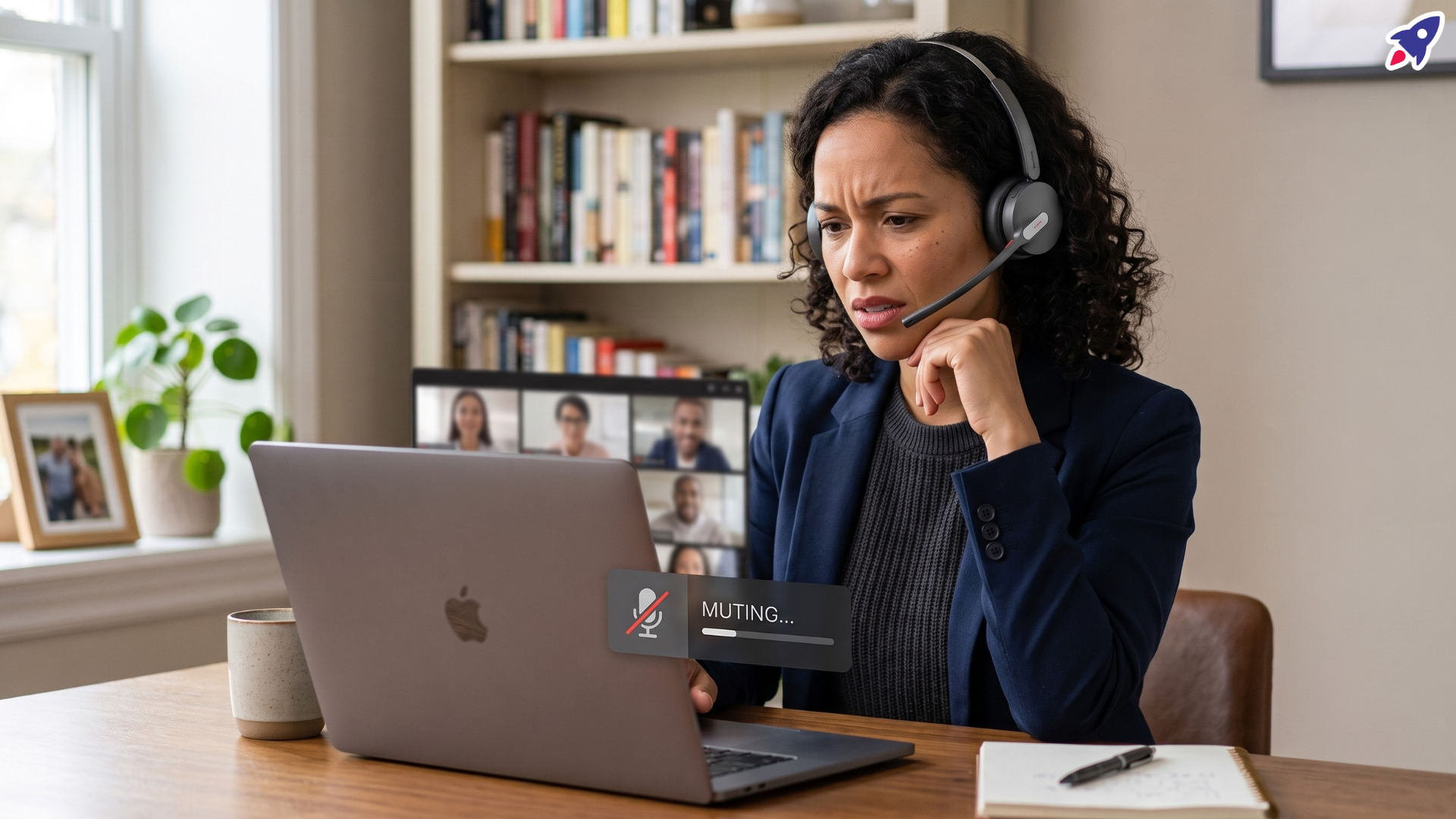
How Do You Fix Slow Mute/Unmute Sync on a Yealink Headset?
To fix Yealink headset mute delay, first confirm whether the delay happens on the headset itself or only inside Zoom, Microsoft Teams, macOS, or Windows. Then update the headset firmware with Yealink USB Connect, select the Yealink device directly in your meeting app, test another USB port or Bluetooth connection, and restart the meeting software.
This guide is for users who press the physical mute button on a Yealink headset and see the software mute icon change late, or who unmute and lose the first few words of a sentence. The issue is usually a sync problem between headset firmware, the operating system, and the meeting app, not proof that the headset is defective.
Quick answer: If the headset LED changes instantly but Zoom or Teams updates slowly, treat it as a software sync issue. If the headset LED itself is delayed, prioritize firmware, charging, pairing, USB cable, or hardware checks.
What Are the Most Common Causes of Yealink Headset Mute Delay?
Yealink mute delay usually comes from one of four places: outdated headset firmware, the meeting app using the wrong audio device, USB or Bluetooth instability, or an operating-system audio permission/resource issue. Start with the simplest checks before replacing the headset.
- Outdated headset firmware: Yealink publishes firmware update workflows through Yealink USB Connect. Firmware updates can improve device behavior and compatibility with current meeting platforms.
- Wrong device selected in the app: Zoom and Teams may use a built-in laptop microphone while the headset handles speaker audio, which can make mute status appear inconsistent.
- USB hub, cable, or Bluetooth instability: Unpowered hubs, low-quality cables, crowded USB ports, and unstable Bluetooth pairing can slow real-time headset commands.
- Meeting app audio processing: Noise suppression, microphone modes, echo cancellation, or automatic gain settings can add processing layers that affect perceived mute behavior.
- Computer resource strain: Heavy browser tabs, screen sharing, video effects, and background apps can delay audio-device status updates during calls.
For Teams users, Microsoft says certified personal peripherals are tested to work with Teams call control and plug-and-play behavior. That makes certification a useful buying signal, but it does not remove the need to keep firmware, apps, and operating systems current.
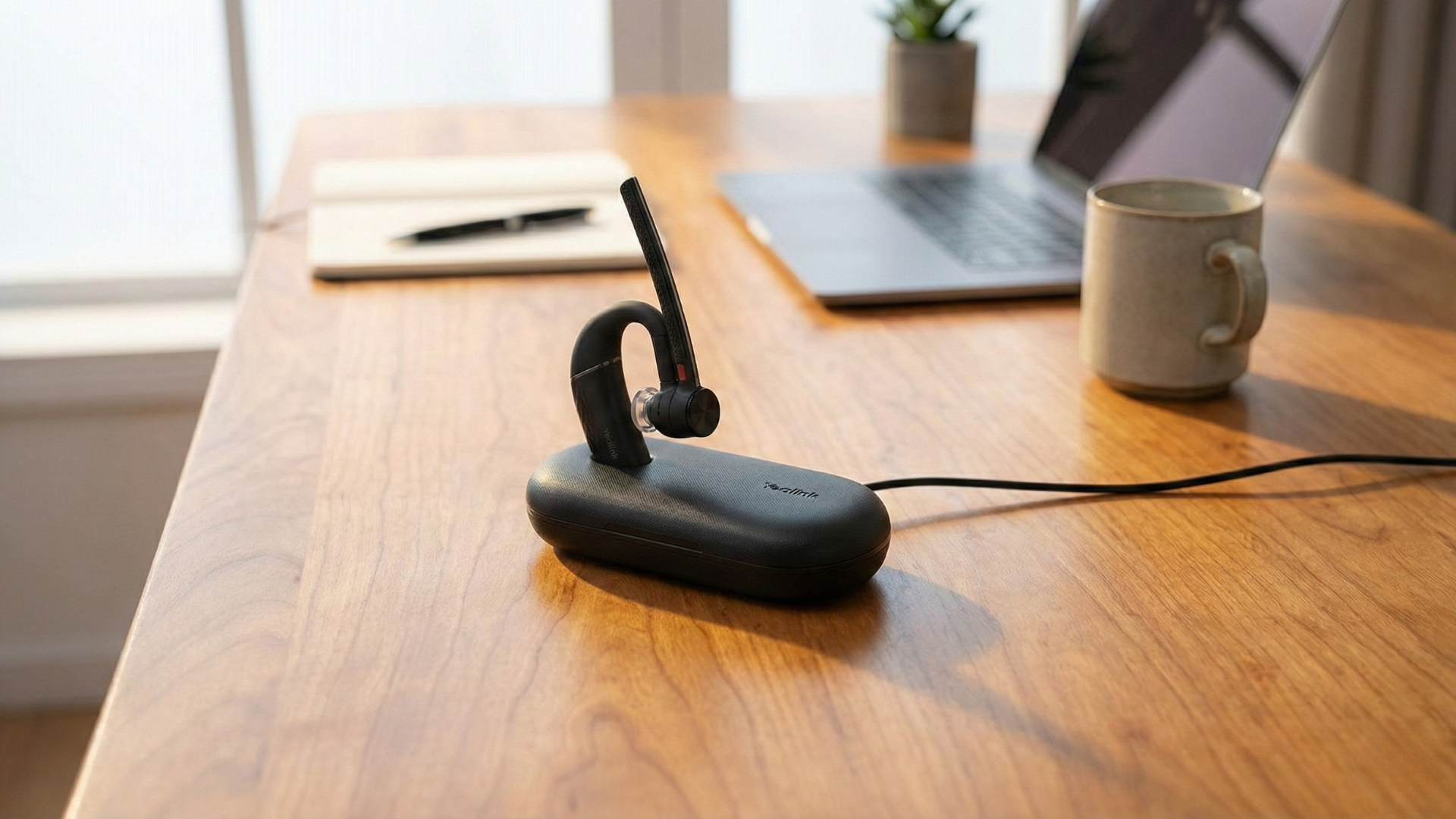
How Can You Tell Whether the Delay Is the Headset or the App?
The fastest diagnostic test is to compare the headset’s own mute indicator with the mute icon in your meeting software. If the headset indicator changes immediately but the app lags, the headset is likely sending the command and the delay is happening in software.
- Press the headset mute button once. Watch the Yealink LED, voice prompt, or base-station indicator if your model has one.
- Watch the meeting app icon at the same time. Note whether Zoom, Teams, or another app changes instantly or after a delay.
- Repeat the test in another app. Try Zoom, Teams, a browser meeting, or your computer’s built-in audio recorder.
- Test with and without video/screen sharing. If delay appears only under load, system resources may be part of the problem.
Rule of thumb: A delayed app icon points to software, app, or OS sync. A delayed headset LED points to firmware, connection, pairing, battery, or hardware.
What Should You Check First?
Before changing advanced settings, do these basic checks. They resolve many cases of Yealink headset mute lag because they refresh the device connection and force the meeting app to recognize the correct microphone.
- Reconnect the headset. For wired USB or a Yealink base station, unplug it and connect it directly to the computer instead of through a hub.
- Confirm microphone and speaker selection. In Zoom or Teams, choose the Yealink headset for both microphone and speaker, then test the microphone.
- Restart the meeting app. Fully quit Zoom, Teams, or the browser session, then reopen it.
- Restart the computer. A reboot clears stuck audio services and background conflicts.
- Test one app at a time. Close other calling apps, softphones, browser meeting tabs, or recording tools that may be competing for the microphone.
How Do You Update Yealink Headset Firmware?
Use Yealink USB Connect to check for headset firmware updates. Yealink’s firmware update guidance directs users to connect the device, run Yealink USB Connect, go to the update area, and install the available update for the connected device.
- Connect the Yealink headset or base to your computer. Use a direct USB connection where possible.
- Open Yealink USB Connect. If you do not have it installed, download it from the official Yealink Support site.
- Go to the device update section. Check whether a newer firmware version is available for your model.
- Install the update and do not disconnect the headset during the process.
- Restart the meeting app and test mute again. Run the LED-versus-app-icon test after updating.
Firmware should be your first serious fix for persistent Yealink WH64 mute delay, Yealink BH71 mute sync issues, Yealink BH74 mute lag, or similar headset software sync problems.
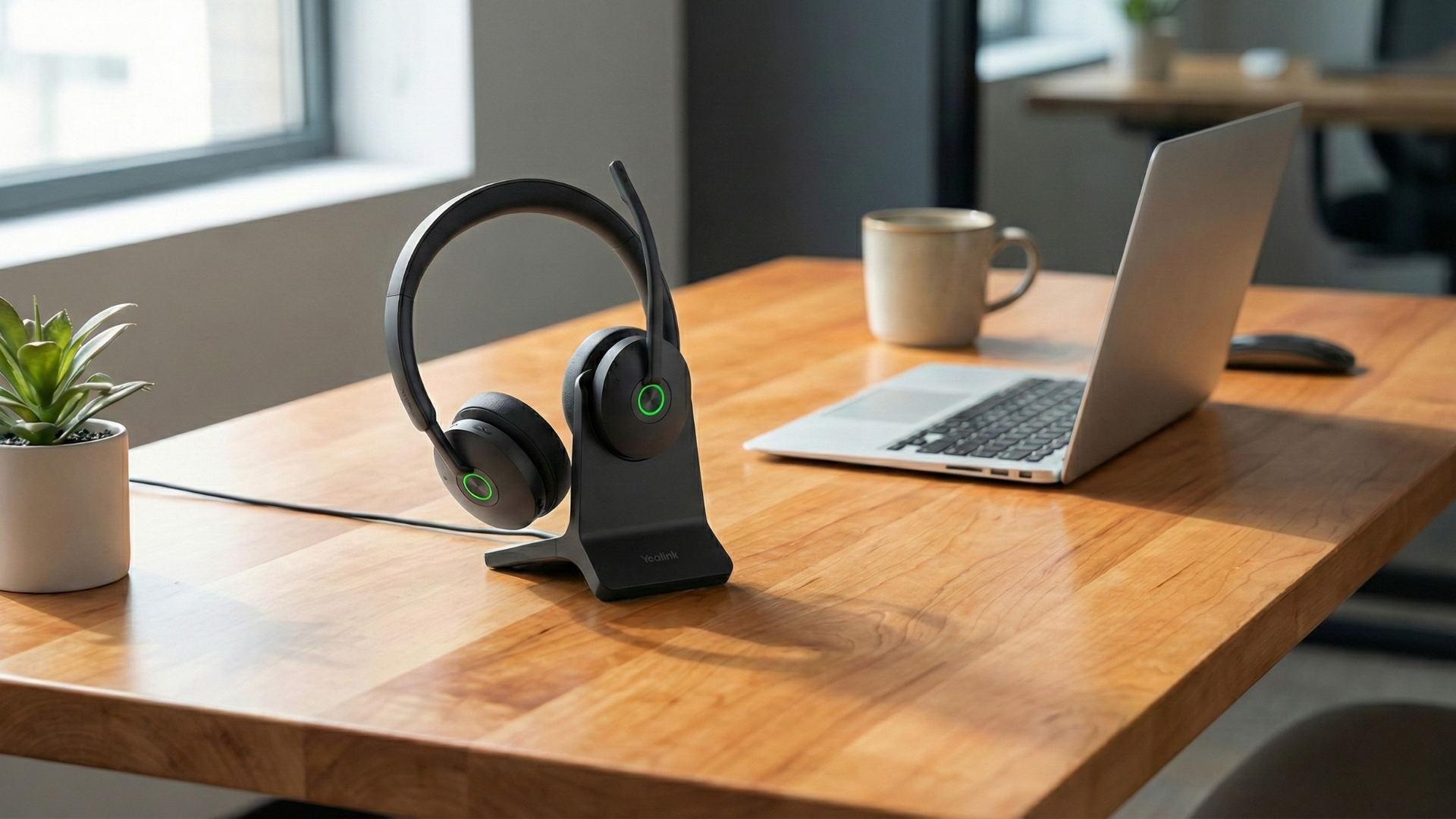
How Do You Fix Yealink Mute Delay in Zoom?
For Zoom headset mute problems, confirm that Zoom is using the Yealink headset as both the microphone and speaker, then test the microphone inside Zoom’s Audio settings. Zoom’s support documentation also recommends checking audio settings and selecting the correct device when troubleshooting speaker or microphone issues.
- Open Zoom settings. Go to Settings > Audio.
- Select the Yealink headset for Speaker and Microphone. Avoid “Same as system” while troubleshooting because it can hide device switching.
- Run Test Speaker and Test Microphone. Confirm the correct headset responds.
- Review microphone processing options. Test whether noise removal, original sound, or other microphone modes change the delay.
- Join a Zoom test meeting. Verify that call controls and mute sync behave correctly before an important call.
How Do You Fix Yealink Mute Delay in Microsoft Teams?
For Microsoft Teams, select the Yealink headset directly in Device settings and test a call. If your work depends on instant mute control, Teams-certified devices are worth prioritizing because Microsoft says certified personal peripherals support Teams call control and plug-and-play use.
- Open Teams settings. Go to Settings > Devices.
- Select the Yealink headset for audio devices. Choose it for speaker and microphone, not only one of them.
- Make a test call. Watch whether the Teams mute icon follows the headset button immediately.
- Update Teams. Use the latest available desktop app version.
- Check certification fit. If you are buying new headsets for a Teams-heavy workplace, compare models listed as Certified for Microsoft Teams.
What Mac and Windows Settings Can Affect Headset Mute Sync?
macOS and Windows can both affect mute sync if the wrong input is selected, microphone permissions are blocked, or the system audio service is overloaded. The goal is to make the Yealink headset the explicit input device at both the system level and app level.
- On macOS: Open System Settings > Sound > Input and select the Yealink headset. Also check Privacy & Security > Microphone to confirm Zoom, Teams, or your browser has permission.
- On Windows: Open Settings > System > Sound and select the Yealink headset under Input and Output. Then check app permissions for microphone access.
- On either system: Quit duplicate calling apps, reconnect the headset, and retest mute in one meeting app at a time.
When Should You Try a Different USB Port, Cable, or Bluetooth Connection?
Try a different connection when the mute delay is intermittent, worse on some days, or appears only when the headset is connected through a hub, dock, or crowded Bluetooth environment. Connection quality matters because mute status is a real-time control signal, not just audio playback.
- Use a direct USB port. Bypass unpowered hubs and docking stations while troubleshooting.
- Swap the cable. If your headset base uses a detachable USB cable, test a known-good cable.
- Reduce Bluetooth conflicts. Disconnect unused Bluetooth devices and keep the headset near the computer or base.
- Re-pair the headset. If using Bluetooth, remove the device from the computer and pair it again.
When Is a New Headset the Better Fix?
A new headset may be the better fix when the delay remains after firmware updates, app updates, direct connection testing, and cross-app testing. This is especially true if the headset is several years old, physically unreliable, or not certified for the platform your team uses most.
- Choose by platform first. Teams-heavy teams should consider Microsoft Teams-certified headset models. Zoom-heavy users should verify Zoom compatibility and test call-control behavior.
- Match the connection type to your workflow. Desk-based users may prefer a USB base for stability; mobile users may prefer Bluetooth with a charging case.
- Prioritize mute confidence. If your job depends on quick call control, choose a headset with clear physical mute feedback, visible status lights, and current firmware support.
Buying new gear should come after basic troubleshooting, not before it. Many slow mute/unmute sync problems are fixed by updates, direct device selection, and cleaner USB or Bluetooth connections.
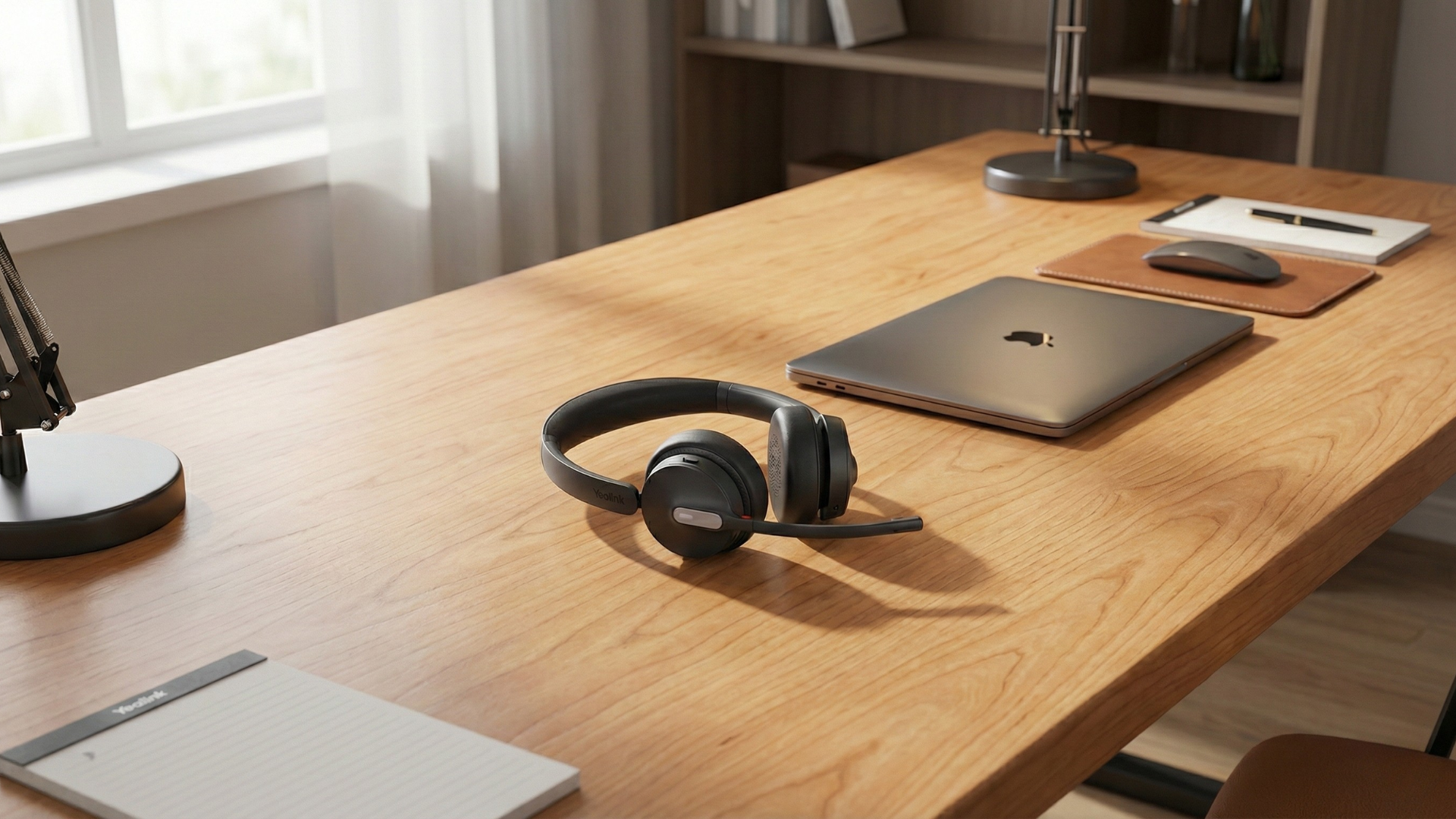
Need help picking the right headset or speakerphone?
Contact Global Teck WorldwideYealink Headset Mute Delay FAQ
Why does my Yealink headset mute button lag in Zoom?
Zoom mute lag usually happens when Zoom is slow to sync with the headset’s mute command, the wrong microphone is selected, or audio processing settings are adding delay. Select the Yealink headset directly in Zoom Audio settings and run a microphone test.
Why does my Yealink headset show muted but Teams does not?
If the headset shows muted but Teams does not, the headset may be sending the command correctly while Teams is slow to update its interface. Select the Yealink headset in Teams Device settings, update Teams, and test with other calling apps.
Can firmware fix Yealink mute/unmute delay?
Yes, firmware can fix some mute/unmute delay issues when the cause is device behavior or platform compatibility. Use Yealink USB Connect to check for updates for your exact headset model.
Is Yealink mute delay a Mac problem?
Not always. Mac headset audio issues can come from microphone permissions, system audio selection, Bluetooth pairing, or app-specific behavior. The same type of mute sync delay can also happen on Windows.
Should I replace my Yealink headset if mute sync is slow?
Replace the headset only after you update firmware, update the meeting app, test another USB port or Bluetooth pairing, and confirm the delay happens across multiple apps. If the issue persists, a newer platform-certified model may be more reliable.
What Should You Do Next?
Start with the LED-versus-app-icon test, then update firmware with Yealink USB Connect, select the Yealink headset directly in Zoom or Teams, and test a clean USB or Bluetooth connection. That sequence gives you the best chance of fixing Yealink headset mute delay without replacing your equipment.
If you still need help choosing a headset for Zoom, Microsoft Teams, macOS, Windows, or hybrid work, Global Teck Worldwide can help match the right Yealink headset to your setup and calling platform.