
Fix Video Call Fatigue and Self-View Exhaustion Fast
Posted by Quentin Vernon on 9th Nov 2026
How to Fix Video Call Exhaustion and Self-View Fatigue
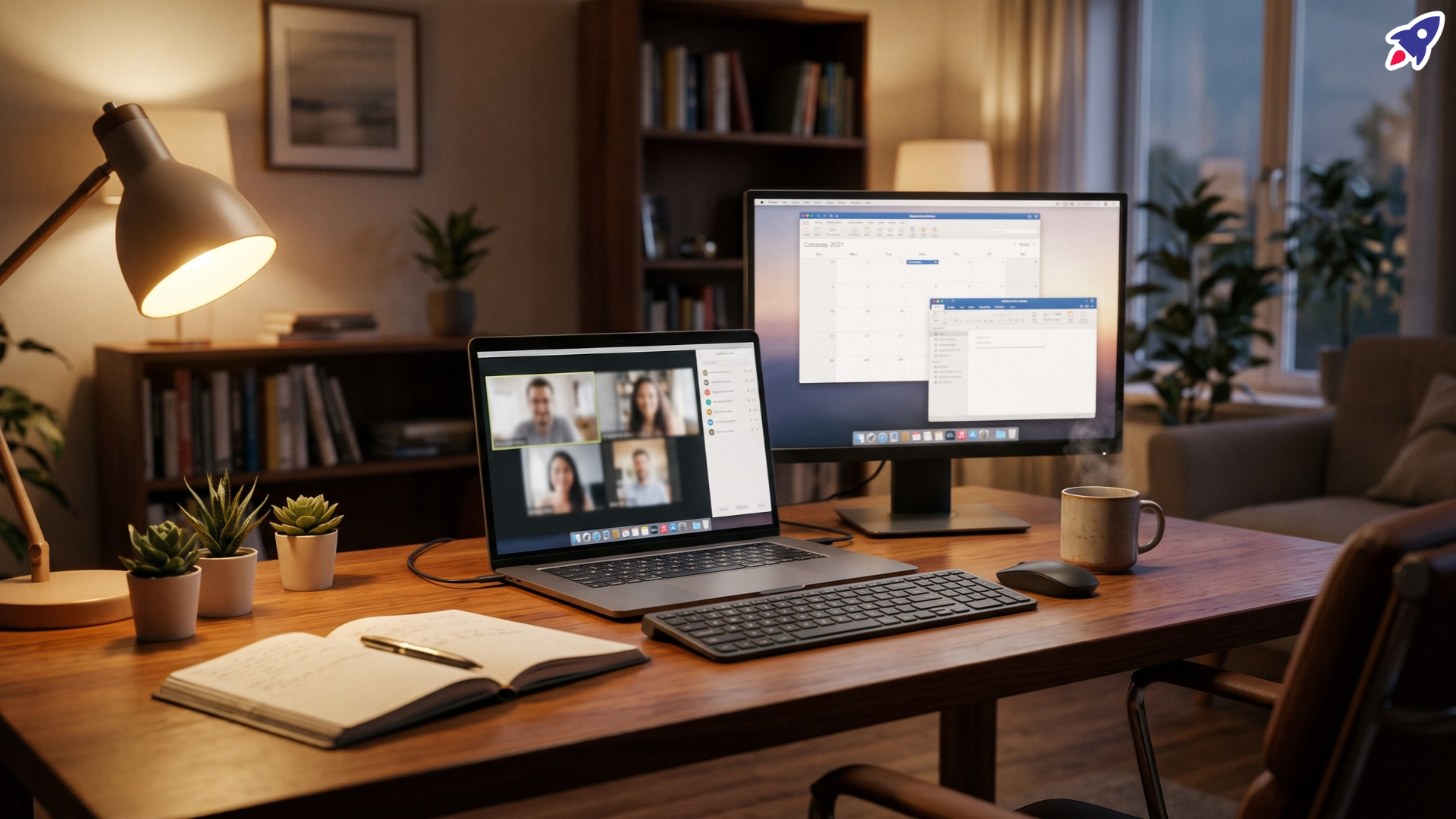
You join your third meeting of the morning, glance at your screen, and immediately catch yourself fixing your hair, checking your posture, and staring at your own face. By 2:00 PM, your brain feels completely cooked. The fastest fix right now? Hide your self-view in your meeting app so you stop watching yourself like a mirror, and we swear you won't even break a sweat doing it.
Why is this happening?
Constantly seeing yourself on camera creates an unnatural mental load. In normal life, you never hold a pocket mirror in front of your nose while chatting with a coworker. When your face sits in the corner of your screen, your brain treats it like an active social evaluation. You end up constantly critiquing your expressions, posture, and eye contact instead of paying attention to the topic.
A few environmental habits make the problem worse:
- Tunnel vision on your monitor: Laptop webcams force you to sit close to the panel, trapping your gaze in an intense, face-to-face staring contest.
- Cognitive hyper-vigilance: Knowing you are on display makes you suppress normal fidgeting, stretching, or looking away.
- Back-to-back schedules: Jumping between rooms with zero buffer keeps your brain in high-alert performance mode. Learning about adjusting to a new hybrid work policy often starts with building space into your daily calendar.
Quick fixes to try first
You can dial back the strain right now with three quick adjustments. Here is where to click, starting with the simplest tweak.
- Hide your self-view inside your meeting app: In Zoom, hover over your own video tile, click the three dots in the corner, and choose Hide Self View. In Microsoft Teams, click the three dots next to your name in the participant list or on your video square and pick Hide for me. You will see your box vanish, but others still see you clearly.
- Switch from gallery view to speaker view: Watching twenty tiny moving boxes at once overloads your eyes. Click your layout settings in the top right and set it to speaker view so only the active talker fills the main space.
- Step back from the lens: Push your laptop back a few inches or slide your chair back. Giving your face breathing room lowers that feeling of being right on top of your colleagues.
One practical warning: when you hide your self-view, check your framing once before you kill the preview window. Make sure you are not cut off at the nose, because you will not have that mirror running to catch it later.
Still not fixed? Try this
Tried all that and it's still dropping your energy into the floor? Okay, let's go a level deeper.
If app tweaks are not enough, look at your visual environment and meeting habits. Soften your lighting setup so you do not have harsh glare reflecting off your displays. Turning down monitor brightness by 15% can quickly soothe strained eyes during long afternoon calls.
Next, renegotiate your default call format. Not every discussion needs full video. Switch short syncs or one-on-one updates to audio-only, or grab a reliable headset from our list of Zoom-compatible headsets so you can stand up, pace around, and look out the window while talking.
Finally, adjust your camera position. Mount your camera at eye level on an external monitor instead of using a low laptop screen. Looking slightly forward instead of down at your keyboard keeps your neck relaxed and prevents physical fatigue from piling on top of visual strain.
When it's time for different gear
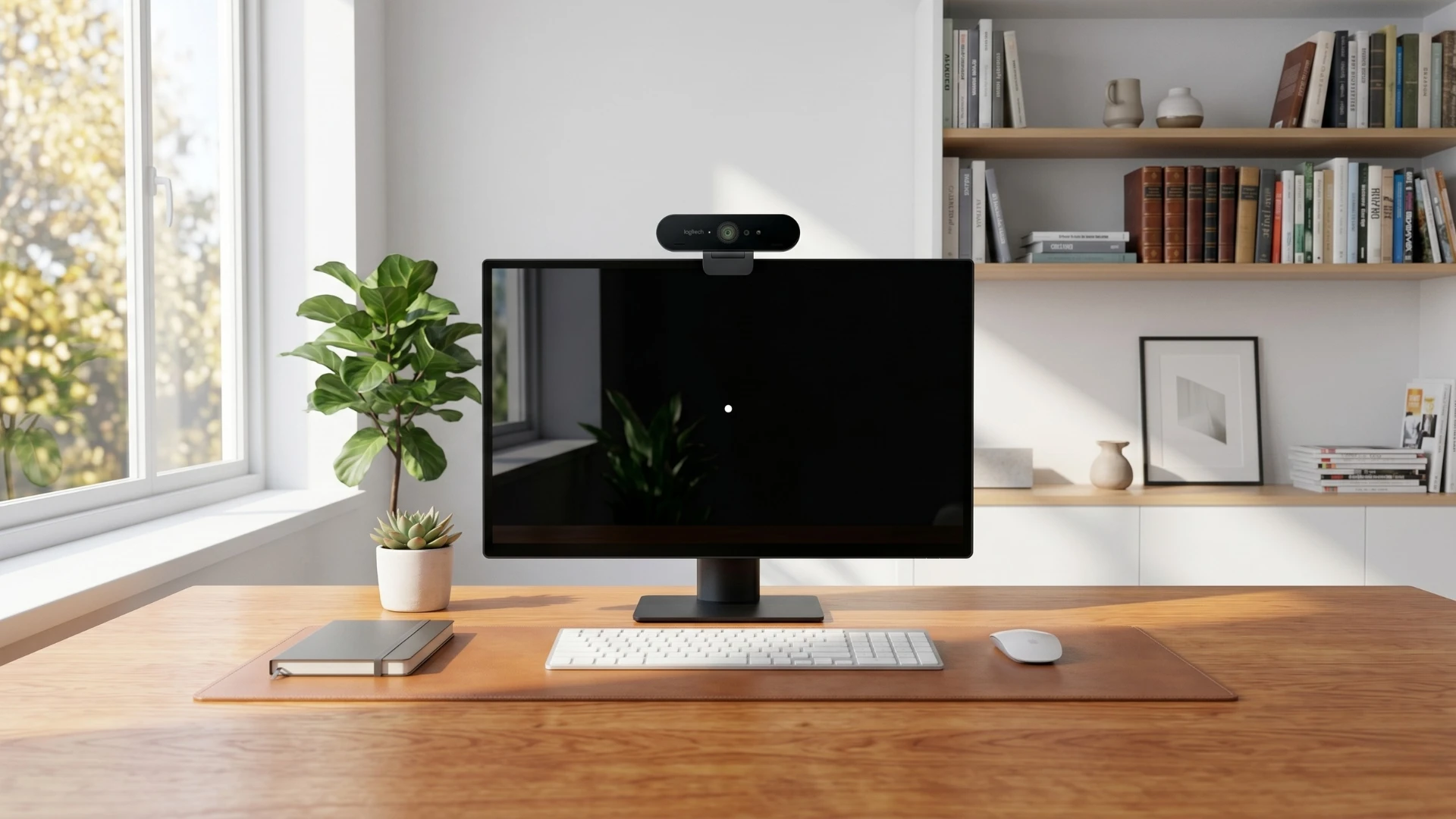
If you are stuck using an integrated laptop camera, you are forced to sit right in front of your display to stay in frame. Moving to a dedicated external webcam allows you to reposition your shot, adjust your viewing field, and back away from your workspace.
A capable camera like the Logitech BRIO 4K Webcam Business PRO solves this by offering multiple field-of-view settings. You can switch to a broader angle that captures your room naturally, which lets you lean back and relax your posture instead of staying frozen directly in front of the lens. It also includes an integrated privacy shutter so you can physically close the door on video whenever a meeting wraps up.
Quick Guide for Avid Readers
- Hide your self-view tile directly in Teams or Zoom so you stop watching yourself speak.
- Change your layout from gallery grid to speaker view to reduce visual clutter.
- Back away from your desk so you are not sitting right on top of the lens.
- Move short project updates to audio-only to take regular eye breaks.
- Use an external camera placed at eye level to keep your neck upright.
Does hiding self-view turn off my camera for other people?
No, it does not. Hiding your self-view only removes your video box from your own monitor. Everyone else in the meeting still sees your regular video feed.
Why does looking at myself during calls feel so tiring?
In a regular face-to-face conversation, you never hold up a mirror to watch your own expressions. Seeing yourself continuously forces your brain to monitor posture, facial cues, and lighting, which burns mental focus.
Can moving my webcam farther away help with fatigue?
Yes, backing the camera up helps considerably. A wider view lets you lean back and use natural hand gestures without worrying about floating just inches from your screen.
Comments? Questions? We got you covered!
Need help picking the right headset or speakerphone?
Contact Global Teck Worldwide